Pacifist Bug?

I’ve used Pacifist to extract data from MacOS X Installer Packages before, but I just noticed something that might be a bug. It was on my Dell/Hackintosh, and I haven’t had time to try the same thing on the iMac G4, but I will. I was about to update the OS X x86 system to 10.4.9, and after reading Method to Update hackintosh 10.4.8 to 10.4.9 (Intel SSE2/3), I had backed up the files referenced, and was backing up the whole partition to a disk image. I thought I’d extract a couple of the files listed, and see if I could figure out the differences between them. So I extracted a file using Pacifist to the Desktop, ready to examine it. Okay, the file isn’t there. Go into Terminal, and list the Desktop. Poof. Finder is gone. When it reloads, the file is there. What I suspect is happening (and I haven’t tried it again, just yet), is that the file is copied, and the Finder isn’t notified. When something else tries to access the file, the Finder panics, or something. I will try to reproduce this on the same system, and my PPC setup. Until then, here I go to update…

Broken MBR and Partition Map

Ooh, scary stuff this afternoon. I was preparing to back up my OS x86 installation, and make a bootable version on another partition, but at some stage I must have repartitioned the whole hard drive. Which included the 75GB NTFS partition with Windows XP, and a heap of data on it. I originally had thought it was the NTFS-3G (read/write FileSystem driver for Mac), but, alas, it wasn’t. So, I spent the next few hours downloading repairers, trying in vain to undelete, before I happened across one CD ISO that did the trick - restored the partition information from a backup. I then had to repair the windows installation (fix the MBR and something else, FIXMBR and FIXBOOT), and everything is back to normal. Man, I’m feeling a whole lot happier than I did a couple of hours ago…

Fixing Broken Samba Sharing

Well, I had installed OS X on an unsupported machine, and had virtually everything I wanted working. With two exceptions. Finder wasn’t able to connect to any file sharing servers, but I was able to manually create mounts, using: $ mount_smbfs //user:pass@machine/mount /mnt I was also able to do something similar with AFS shares. Which, by the by, are much nicer - they actually allow me to copy icons from my iMac to my Dell. Then, I happened across this forum post: Personal File Sharing & Samba, JaS 10.4.7 Basically, it seems that some of the files from the Hackintosh installation aren’t perfect. So, the following needs to be done:

1
2
3
4
    $ cd /usr/sbin
    $ sudo rm AppleFileServer
    $ sudo ln -s /System/Library/CoreServices/AppleFileServer.app/Contents/MacOS/AppleFileServer AppleFileServer
    $ sudo unlink /System/Library/Filesystems/afpfs.fs

I’m not sure about the last one, but I did it anyway. And then I was able to use the Finder “Connect to Server…” tool. And have shortcuts on my desktop to servers.

MacOS X on Intel

Well, after two days of trying, I finally got OS X to install on my Dell Dimension 4600. In the end, it seems my installation DVD was slightly corrupted, enough to fail on trying to install a particular package. Which, it turned out, was the one that stops kernel panics on boot. Kinda handy. The way I got around it was to use Pacifist to unpack the package on the iMac, and copy the files across using my iPod. This was after countless reboots. I wish I’d thought of it earlier. Like yesterday morning. So, now I’m typing this from the lovely place that is OS X. I managed to get Sound working, just by changing the plug location. Only in-built AC97 sound works, but that’s mainly what I’ve been using anyway. I had been using the PCI soundcard for TeamSpeak, but not for actual system sounds. At the worst, I can just build a cable double adaptor and leave it plugged into both locations. Networking required the download of an extension - AppleIntel8255x.kext, and that worked fine too. In the short term, I just plugged in a Firewire cable to the iMac, and used Internet Sharing to build the network. But this is better, and it even picks up the same IP address (and hostname) from my DHCP server. Graphics still isn’t perfect, but I’m only a few minutes away from downloading a potential driver. In fact, it’s just finished now.

Undocumented Komodo Command

I was trying to do something earlier, where instead of creating a Command, I just used a macro that executed a command, but I wasn’t really able to. Then, I happened to record a macro where, instead of having made the command earlier, I ran it while recording. The following JavaScript is the macro:

// Macro recorded on Sat Apr 14 2007 00:30:57 GMT+0930 (CST)
komodo.assertMacroVersion(2);
if (komodo.view) { komodo.view.setFocus() };
komodo.doCommand(‘cmd_selectAll’)
Run_RunEncodedCommand(window, ‘python -u {'operateOnSelection': True}’);

Now, I just need to see if I can use python macros to get the same effect.

Tonight May Have To Last Me All My Life • The Avalanches • Since I Left You ★½

Komodo Macros

I’ve been working on a few little macros for Komodo. I’m planning to build a more cohesive set as I use the editor more.

Export HTML Tools.

The first is Copy As HTML Snippet. This gets an HTML representation of the current document and it’s syntax styling, and stores this in the Clipboard. There are two related tools: Export As HTML, and Export Selection as HTML. They save either the whole file, or the current selection. They create a new file, rather than store the data in the Clipboard. Each to her own. The code for each: (recursion: uses the macro to get the code of the macro…)

Copy As HTML Snippet.

 1
 2
 3
 4
 5
 6
 7
 8
 9
10
11
12
13
14
15
from komodo import components, document  
from xpcom.server import UnwrapObject  
import re  
  
# Get the current buffer, and an html representation.  
buf = UnwrapObject(document.ciBuf)  
html = buf.to_html(False,False,None,True,True)  
# Remove some debugging code left by the developers.  
html = html.replace('onmouseover="show_class(event.target);"','')  
html = html.replace("'","'")  
html = re.sub('SCE_P_.*? ','',html)  
  
# Put it into the clipboard,  
ch = components.classes["@mozilla.org/widget/clipboardhelper;1"].getService(components.interfaces.nsIClipboardHelper)  
ch.copyString(html)

Export As HTML

1
2
3
import komodo  
komodo.view.setFocus()  
komodo.doCommand("cmd_exportHTML")

Export Selection As HTML

1
2
3
import komodo  
komodo.view.setFocus()  
komodo.doCommand("cmd_exportHTMLSelection")

You can get a Project (mutliple part packages are broken on export for me at the moment) with all three macros from: HTML Export Tools.

Java Development Tools

This will eventually, I hope, become a more useful set of tools, perhaps being replaced by better interaction with, for example, Komodo’s native debugger. At the moment, debugging requires knowledge of the specific debugging commands. However, I am confident I can use the inbuilt Breakpoint structure to create breakpoints easily, and step through code.

Build & Execute

This macro calls a Command, at the moment, after saving the file.

 1
 2
 3
 4
 5
 6
 7
 8
 9
10
import komodo  
komodo.view.setFocus()  
komodo.doCommand('cmd_save')  
try:  
    komodo.findPart('command', 'Java Build & Execute', '*').invoke()  
except:  
    from xpcom import components  
    wwatch = components.classes["@mozilla.org/embedcomp/window-watcher;1"].getService(components.interfaces.nsIWindowWatcher)  
    prompt = wwatch.getNewPrompter(wwatch.activeWindow)  
    prompt.alert("Execution Error", "Unable to find 'Java Build & Execute'")  

Java Build & Execute

This is a Command, with the following in the Command: section if test “%F” -nt “%b.class”; then { javac “%F” ; if test “$?” == “0”; then java -classpath . “%b”; fi; } else java -classpath . “%b”; fi This should all be on the same line. In the Start in: box, insert %D

Java Build & Debug

Basically the same as the above, but with java replaced by jdb: if test “%F” -nt “%b.class”; then { javac “%F” ; if test “$?” == “0”; then jdb -classpath . “%b”; fi; } else jdb -classpath . “%b”; fi Start in: must be %D The project containing all of these can be found at Java Tools.

Python Tools

My python tools are a bit simple at this stage - after all, there’s already a fair bit of stuff in there to work with python! I do have a couple of bits that are useful. The Run Command… dialog is okay, but I always forget to save the document before running it, so I have two pairs of tools, one to Save and Run the file, and the other to Save and Run the file interactively. They are basically the same, with the difference of one command line switch, and the name of the command in the macro.

Save and Run Current Script

 1
 2
 3
 4
 5
 6
 7
 8
 9
10
import komodo  
komodo.view.setFocus()  
komodo.doCommand('cmd_save')  
try:  
    komodo.findPart('command', 'Run Current Python File', '*').invoke()  
except:  
    from xpcom import components  
    wwatch = components.classes["@mozilla.org/embedcomp/window-watcher;1"].getService(components.interfaces.nsIWindowWatcher)  
    prompt = wwatch.getNewPrompter(wwatch.activeWindow)  
    prompt.alert("Execution Error", "Unable to find 'Run Current Python File'")  

I’ve put a nice icon on it, which you can get by right-clicking on the following image, and downloading it.

Run Current Python File

This is a fairly simple one, there’s really only one trick. python -u “%F” And %D in Start in:, as before. The -u tells the interpreter not to buffer input and output.

Save and Run Interactively/Run Current Python File Interactively

Just add the word Interactively in the two places in the macro, and add -i in just before the -u in the command. Simple!

Execute Selection

Another simple one, this is just a python -u command that has the Pass selection as input box checked.

Execute All

A simple macro that selects all before running the above command. I may try to improve it so it re-selects the initial selection after. Maybe. I just used the macro builder to create this one. Cmd-A, then click on the Execute Selection tool. As before, get all of them from Python Tools.

The Closest Thing To Crazy • Katie Melua • Call Off The Search ★★★★★
Komodo 4.1 Paste Bug

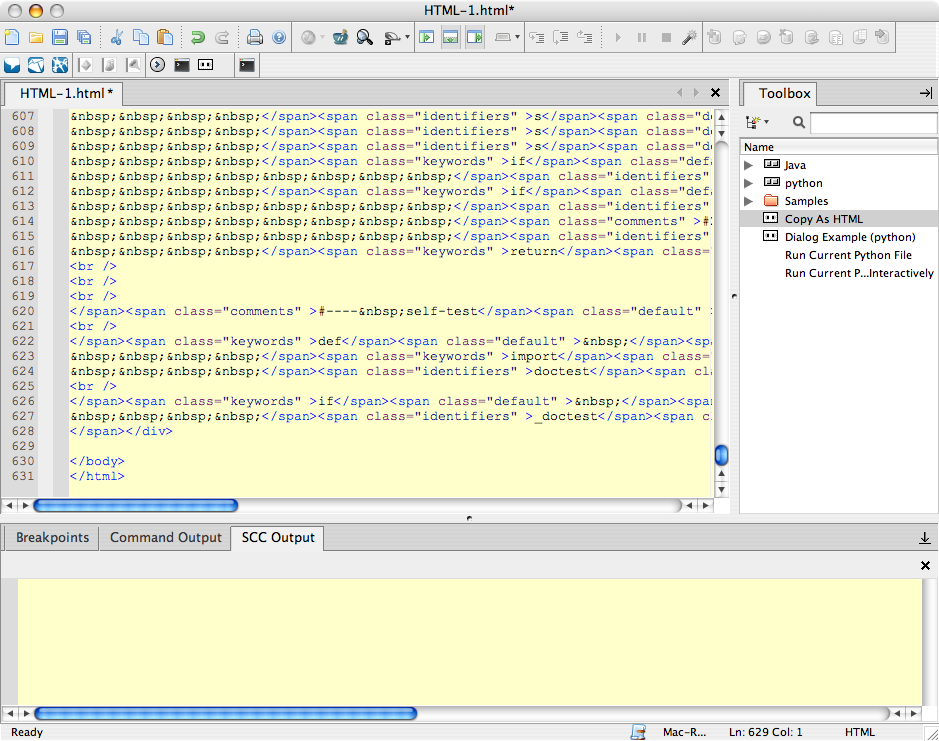
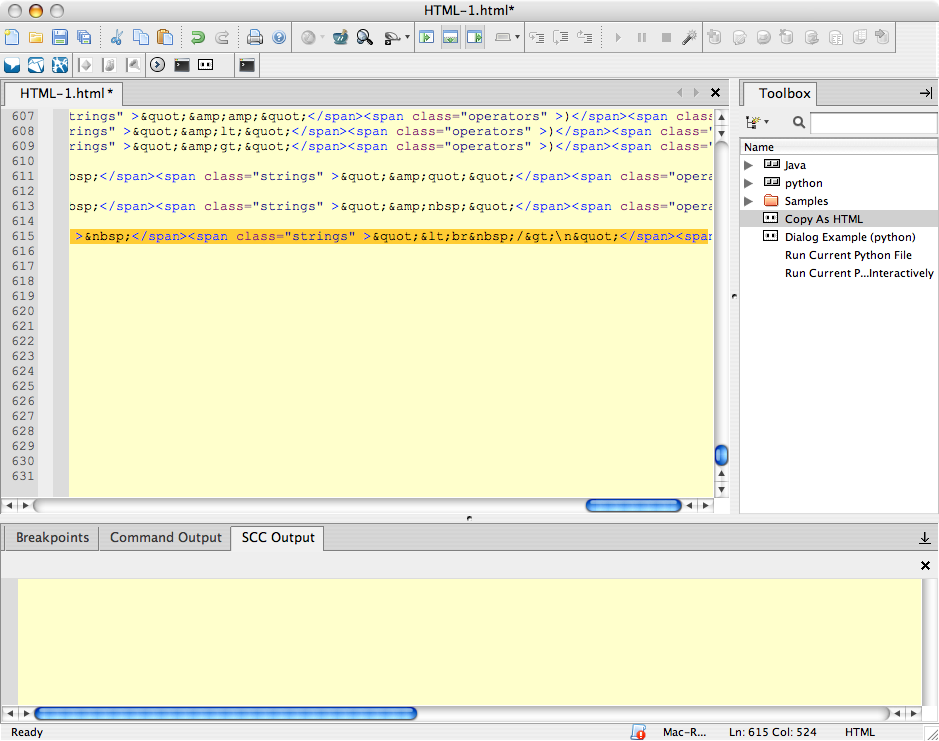
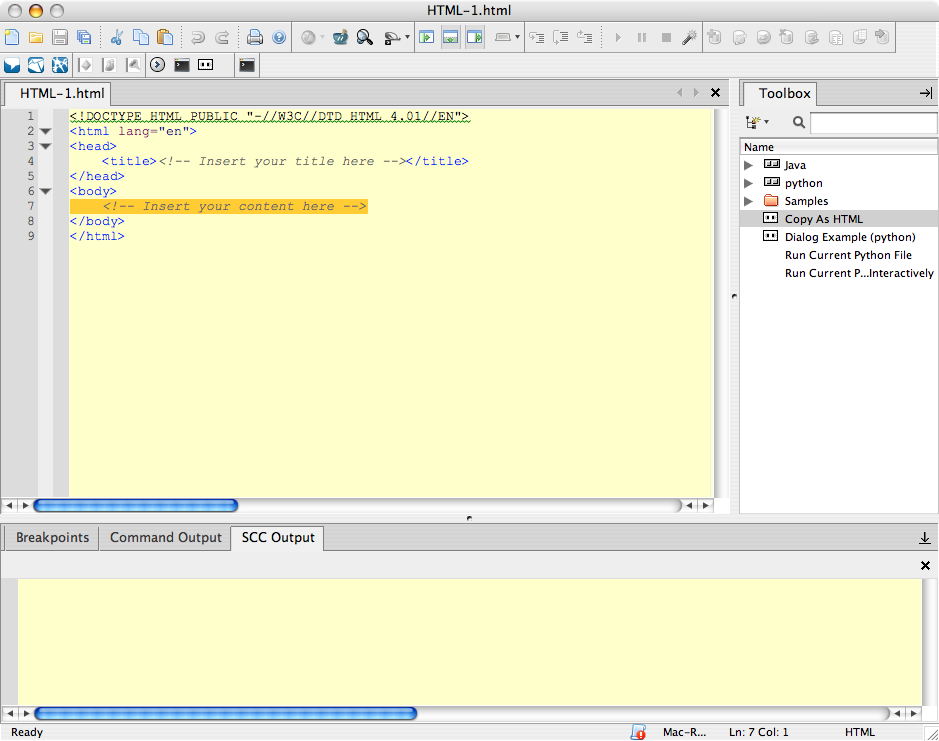
I have discovered a bug in Komodo IDE, version 4.1.0-beta1, build 276433, platform macosx-powerpc; Built on Fri Mar 2 17:20:02 2007. If you fill the clipboard with text that is wider than the buffer, which defaults to being 250 characters wide, and paste this into a new document, then the scrollbar down the bottom does not reflect the new width. Thus, if you drag the scrollbar across to the right, you do not see all of the inserted text. If you click on the scrollbar arrow, then you can still move further to the right, as if you drag-select in the editing frame. This bug does not always appear in Windows, which moves the cursor to the end of the inserted text. However, if multi-line text is pasted, then the bug displays itself. Hopefully, the images below make this clearer. I did try to record a screencast, but the quality was crap, and the filesize was huge… Clicking on the images will open them in a new window. You can see enough detail without doing this, if you know what to look for. Image 1 shows the HTML document before I paste in the long lines of text. Image 2 shows how the Scroll Bar width has not changed. Image 3 shows how the full text is not visible if the thumb is fully dragged to the right. Image 4 shows how drag-selecting the text changes the size of the thumb.

Komodo Bugs

I’ve already filed, and had one of these fixed, but that’s only in the next beta, so I’ll write about it here, too. If you double-click an associated file in Komodo 4.0.3 that isn’t one of the standard files, like a .java source code, for example, and Komodo isn’t running, it will not start properly. Double-clicking it when Komodo is running loads it normally. If you have a wide text load in a clipboard, and copy it into a buffer, sometimes the buffer scrollbar doesn’t go all of the way. I’ll do some more testing on this tonight, but it was a bit of an annoyance. Kind of hard to explain - I need to take some screenshots, or perhaps even make a screencast.

Komodo IDE Python Interactive Shell

The python interactive shell on Komodo is pretty cool. I’d like it to be a bit more responsive, but I can’t really put my finger on what’s going on. I did notice, with python 2.5 that it pops up this traceback on a Ctrl-D:

    Traceback (most recent call last):
      File "/Applications/Komodo IDE.app/Contents/SharedSupport/dbgp/bin/pydbgp", line 270, in <module>
        sys.exit( main(sys.argv) )
      File "/Applications/Komodo IDE.app/Contents/SharedSupport/dbgp/bin/pydbgp", line 264, in main
        client.runInteractive()
      File "/Applications/Komodo IDE.app/Contents/SharedSupport/dbgp/pythonlib/dbgp/client.py", line 1893, in runInteractive
        self.cmdloop()
      File "/Applications/Komodo IDE.app/Contents/SharedSupport/dbgp/pythonlib/dbgp/client.py", line 2025, in cmdloop
        self.onecmd(data)
      File "/Applications/Komodo IDE.app/Contents/SharedSupport/dbgp/pythonlib/dbgp/client.py", line 2145, in onecmd
        self.socket.send_response(str(ex))
      File "/Applications/Komodo IDE.app/Contents/SharedSupport/dbgp/pythonlib/dbgp/client.py", line 1745, in send_response
        self._socket.send('%d\0%s\0' % (l, response))
    AttributeError: 'NoneType' object has no attribute 'send'

RIP Don Atkinson

I was saddened to hear last night of the passing of an influentual man in my life. As a beginning teacher, I was posted to a “hard to staff” school, but had a fantastic coordinator and faculty that supported me. We did quite a lot of exciting stuff back then, including working with a retired engineer called Don Atkinson. Don’s specialty was electric motors, and he spent every Friday for most of my five years at that school coming in and designing and building them with a small group of students, and myself and my coordinator. Don passed away on Monday morning. Don led an amazing life. From going to Jazz Clubs as an underager during the war, to being one of the founding members of Flinders University’s engineering department, and finally working with children in a largely voluntary capacity, he will be missed by many people from many walks of life. I’ll miss you, mate.