Rewrite using Framework
- Comments:
- here.
I think I might rewrite all of this site’s scripting using a framework. Probably Yahoo’s stuff, that looks very cool: YUI.
I think I might rewrite all of this site’s scripting using a framework. Probably Yahoo’s stuff, that looks very cool: YUI.
I’ve gotten frustrated with the fact my Admin Toolbar, which most of you won’t ever see, obscures some of the page at times: 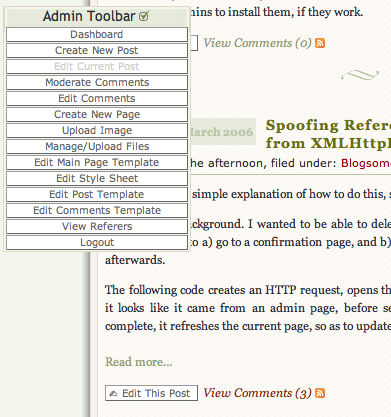 I’m really happy with how much time this saves me, however, so I don’t want to kill it. If only I could make it only appear when I’m actually hovering over it… And then I chanced upon the opacity: selector:
|
|
(The second entry is for older versions of Firefox, the third for IE). Now, it looks more like: 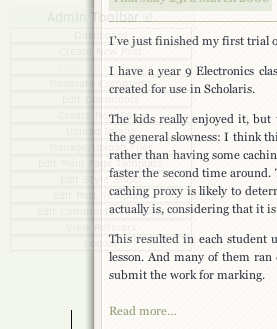
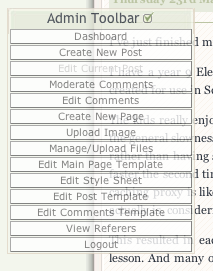 The only thing I’d like to do is make it so it fades in and out, which I might be able to do with the original JavaScript, or perhaps so that only the actual item that is being hovered over is more opaque. However, I’m struggling with the CSS to to this, so I’ll leave it out. I do like the idea of a fade in-out, however.
Change icon color with CSS - CSS Insider This is actually a very cool idea: it allows for very simple replacement of image background colours. The images are actually transparent background, with white detail, and you just place them over a div-tag with the right background/shape, and away you go. You can then very easily change the colour/shape, all with CSS, allowing for site-wide design changes very simply. Plus, they are smaller than using images with colours, and you only need to have one version but can have different colours, without a server hit for changes in colour.
Firefox doesn’t display Title Tooltips very well. If they are too long, it just truncates them:  Camino does a much better job:
 So does Safari:
 However, using the Popup ALT Attributes extension, you can get something a little better:
 I’ll have a fiddle with the source code, and see if I can get it to break on commas, like the other X browsers do. Opera has a slightly different view of what should be happening. At least they are multi-line, but all of the commas have been removed! And the tooltip is rather wide, on my screen:
 Internet Explorer (Windows) displays them as:
 Out of all of these, I like the way Safari and Camino display tooltips, especially in this case, where the list items are in fact seperate posts, and should be displayed on a seperate line.
Now, I’m not talking here about using the “Show Source” feature of a Web Browser. Anyone worth even a quarter of a pinch of salt knows how to do that. What I’m trying to do is display the source of a web page as text/plain within another web page. This is so I can have a current version of my template available on a page of my blog. I’ve put a version up that I need to update, and I make so many changes to the template this is unsustainable.
Under Blogsome, the template files can be found in the /templates/ directory, and there are four of them: index.html, wp-layout.css, post.html and comments.html. Of these, only wp-layout.css is a plain text document, the rest are (naturally) text/html.
Now, HTML has a nice little feature called <object>, which should be able to display anything the browser can render. For example:
<object data="/templates/index.html"> </object>
Will display a rendering of the Main Page template. It looks somewhat ugly, since it’s not been pre-processed by the Smarty Templating engine, so is somewhat useless - it’s neither the source nor the full result:
This element also has an attribute that should allow you to choose the content type: codetype.
<object data="/templates/index.html" codetype=“text/plain”> </object>
This to me should be now rendering the object as a plain text document. But no, it still renders the HTML:
|
|
I fiddled around with this for about an hour or so last night, trying to get it to work. The DOM tells me it’s text/plain, but the browser won’t render it as such.
So, after much more rooting around, I finally figured out a way to get the source to display: use XMLHttpRequest() to grab the data, and DOM manipulation to put it into the required location. This is what my page looks like:
|
|
It’s not quite perfect: there are still some issues with the timings, but I’ll get there. At least it works, now. You may need to type javascript:Source() into the address bar to get it to work.
All I need to do now is some syntax styling!
I’ve got some serious JavaScript_age_ going on with my site: I sometimes wonder if it’s too much. One thing I have noticed is that on my iMac I get occasional “There is a script taking a long time to finish. Continue/Stop Script” errors, but never see these on the PC. I also don’t see them under IE/Win, the platform I am forced to use at work. 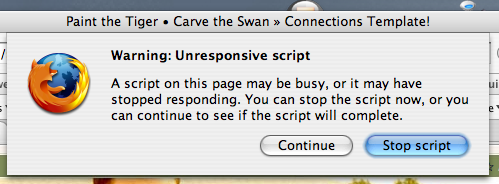 I also get errors with Camino, but I’m not sure about Safari. I’ve gone into about:config, and changed dom.max_script_run_time from the default of
5 to 20, just to see if that makes a difference.
I have an Asides category, posts in which appear differently on my site. That’s all well and good, but I want these posts to appear normally if viewing the Asides category, or an individual Asides post. So, I need to be able to style stuff differently depending on a couple of factors. The most obvious method for this would be to have CSS changing if certain conditions are met. However, in practice this seems to be somewhat difficult. You cannot access the equivalent of a DOM tree in CSS. You can add new entries to a style description, but not find out much real information about the current styles. Approaching this from the other direction, however, looks to be more promising. Especially if you examine the code I use to style differently to begin with:
<div class="post {is_aside}{if $is_aside=='true'}Asides{/if}" id="post-{the_ID}">
This snippet could be used to have different styles for any category, using something like:
<div class="post {the_category seperator=' '}" id="post-{the_ID}">
I’m not examining now the mechanics of how to change these styles, as that can be found in another post on my site: Styling Asides Differently. To remove the Aside class entry, I’ve restructured my post.html file to start with:
    {is_aside}
    {if $smarty.server.REQUEST_URI|truncate:17:'':1 == '/category/asides/'}
        {assign var=is_aside value=false}
    {/if}

    <div class="post {if $is_aside=='true'}Asides{/if}" id="post-{the_ID}">
But how do we find out if we are viewing a single post? One easy method is to test using the {single_post_title} function:
    {capture name=title}{single_post_title}{/capture}
    {if $smarty.capture.title != ''}
        {assign var=is_aside value=false}
    {/if}
Bingo. All Done. My Mum is right. I am a star.
I thought I’d already written up a post on this, since I discovered it about a month ago, but apparently not. Blogsome has a nice little function called {is_asides}. It allows for easy alternate formatting of posts within a category called Asides. So, to have these fancy little numbers, the first thing you’ll need is an Asides category, with a post in it. Then, in your Post Template, try the following code: <div class="post {is_aside}{if $is_aside=='true'}Asides{/if}" id="post-{the_ID}"> This sets up the class of the post to also be Asides if it is in that category. I’ll make a note here that this could be done with any category, and just use {the_category seperator=" "}. This would allow alternate styling for any given category, but I wanted to use the {is_asides} Smarty function. That’s all of the code you need, the rest is just pure CSS. In my stylesheet, I have the following code, that looks after all of the Aside related stuff:
|
|
The first stanza sets up the border and layout for the actual post. The second hides all of the post-info, such as Date, Title, etc. I later decided to move the Comments Link, else there is no way to view/add comments. The third removes the fancy symbol that appears between posts, and the last one removes the line at the top, and puts some lovely quotes into the background. I’m still going to tweak this a little: on an individual post page, the next/previous post links overlap with the bottom of the border.
I’m not sure, but I think my script is doing something that stops comments going through the first time you submit them. I’ve only noticed it on my blog: except I just noticed it on another blog when I tried to comment. When I repeated the comment, it worked fine. Also, I think when I’ve already commented and then add another comment during the same session, it all works fine. Maybe that’s why I’m not getting too many comments anymore. Either that, or I’m just not posting stuff that’s interesting enough.
Turn It Around Again • Alexkid • [Chillout Sessions 8][2] ★★★
[2]: http://www.google.com/search?q=%22Chillout Sessions 8%22
Editing comments in IE is annoying - until just now I had a width:100%; clause in my StyleSheet, and this somehow caused IE to resize the box every time a character is typed. Now, you lose access to the scrollbar, but it doesn’t do the jumping thing. It actually got me thinking about how to implement WYSIWYG commenting. Instead of typing into a TextArea form, you type into a div. This div doesn’t allow for HTML to be actually typed in, but does have the quicktags. Any HTML code is actually converted to how it would display. Pressing any of the quicktags formats the text automatically. The raw text (actually, the raw HTML) is also stored in a hidden textarea, and this is what is sent to the server. This kills a few birds with one stone:
Potential problems that may appear (this may be extended):