Docker + Makefile

I rewrote one of my projects (Fronius Dashboard) in Python - more because I was no longer able to get the build to work correctly under Elixir. As a side-effect, the image size went down a lot.

Part of this process is to build multiple-architectures, and publish these manifests. As an aside, being able to version them is also nice.

We’ll start with the versioning, because that’s a bit simpler.

Take a file VERSION. Put the current version into this file (x.y.z format is the only one supported so far).

Now, we can have a few tools to handle this:

.PHONY: bump-major bump-minor

requirements.txt: poetry.lock pyproject.toml
	poetry export -o requirements.txt

bump-major:
	cat VERSION | awk -F. '{print $$1 + 1 ".0.0"}' | tee VERSION
	
bump-minor:
	cat VERSION | awk -F. '{print $$1 "." $$2 + 1  ".0"}' | tee VERSION
	
VERSION: app.py requirements.txt
	cat VERSION | awk -F. '{print $$1 "." $$2 "." $$3 + 1}' | tee VERSION

This allows us to have make bump-major that adds one to the existing major version, and resets the minor and patch versions. And another version that adds one to the minor version, and resets the patch version.

There is no bump-patch, instead every file that could possibly affect the code is included in the make VERSION dependencies list. This means that make VERSION will only run if any files have changed, and in that case it will increment the patch version.


So, that’s the versioning. How about publishing docker images?

There are a couple of things that we need to do:

  • build for a number of platforms (amd64, armv6 and armv7, because I run stuff on Raspberry Pi hardware).
  • create and push a manifest of all images
  • also create and push a tagged version (ie, not just latest).
IMAGE := <image-name-goes-here>

.PHONY: release bump-major bump-minor
	
release: Dockerfile VERSION
	docker buildx build . -t $(IMAGE):armv6 --platform linux/arm/v6 --push
	docker buildx build . -t $(IMAGE):armv7 --platform linux/arm/v7 --push
	docker buildx build . -t $(IMAGE):amd64 --platform linux/amd64 --push
	
	docker pull $(IMAGE):armv6
	docker pull $(IMAGE):armv7
	docker pull $(IMAGE):amd64
	
	docker image rm --force $(IMAGE):latest
	
	docker manifest create $(IMAGE):latest \
		$(IMAGE):armv6 \
		$(IMAGE):armv7 \
		$(IMAGE):amd64 \
		--amend
	
	docker manifest annotate $(IMAGE):latest $(IMAGE):armv6 --variant v6l
	docker manifest annotate $(IMAGE):latest $(IMAGE):armv7 --variant v7l
	
	docker manifest create $(IMAGE):$(shell cat VERSION) \
		$(IMAGE):armv6 \
		$(IMAGE):armv7 \
		$(IMAGE):amd64 \
		--amend
	
	docker manifest annotate $(IMAGE):$(shell cat VERSION) $(IMAGE):armv6 --variant v6l
	docker manifest annotate $(IMAGE):$(shell cat VERSION) $(IMAGE):armv7 --variant v7l
	
	docker manifest push $(IMAGE):$(shell cat VERSION)
	docker manifest push $(IMAGE):latest

requirements.txt: poetry.lock pyproject.toml
	poetry export -o requirements.txt

bump-major:
	cat VERSION | awk -F. '{print $$1 + 1 ".0.0"}' | tee VERSION
	
bump-minor:
	cat VERSION | awk -F. '{print $$1 "." $$2 + 1  ".0"}' | tee VERSION
	
VERSION: app.py requirements.txt
	cat VERSION | awk -F. '{print $$1 "." $$2 "." $$3 + 1}' | tee VERSION

There is a bit of repetition - I’m sure I could do something using Makefile expansion, but this works for now.
RobotFramework, Chromedriver and Docker

One of my team implemented RobotFramework support for automated browser testing of our platform a while ago. At the time, we were using Codeship Basic, and I built a helper to run a robot test suite within a tox environment. It was all good, because chromedriver and all it’s dependencies were already installed.

But time passes, and we needed to move to Codeship Pro. Which has some neater features, but required me to build docker images for everything. We already use docker for deployment, but I didn’t really want to build a bunch of distinct images just for testing that re-implemented the same stuff that we have in our deployment images. Even just appending new stuff to them means that things could turn out to be a pain in the arse to manage.

And getting chromedriver installed into a docker image is not neat.

I did find a docker image that just has an instance of chromedriver, and exposes that. But getting that to work with robot was still a bunch of work. After much experimentation, I was able to get the connections between everything to work.

First, we need to have the chromedriver container running:

$ docker run -p 4444:4444 CHROMEDRIVER_WHITELISTED_IPS='' robcherry/docker-chromedriver:latest

Then, there are a few moving parts that need to be in place to get things to work. Using my djangobot management command (which I had to extend a bit here), a single command can be used to spin up a Django runserver command, apply migrations (if necessary), and then run the robot commands. The trick is you need to teach Robot to speak to the remote WebDriver instance, which then in turn speaks to the running django webserver.

First, the RobotFramework commands; my resource.robot file which is referenced by all of my robot test suites contains:

*** Variables ***

${HOSTNAME}         127.0.0.1
${PORT}             8000
${SCHEME}           http
${SERVER}           ${SCHEME}://${HOSTNAME}:${PORT}
${BROWSER}          headlesschrome
${TIMEOUT}          30
${REMOTE_URL}

*** Settings ***

Documentation   A resource file with reusable keywords and variables.
Library         SeleniumLibrary             timeout=${TIMEOUT}      implicit_wait=1
Library         Collections
Library         DebugLibrary
Library         DateTime
Library         String
Library         djangobot.DjangoLibrary     ${HOSTNAME}     ${PORT}

*** Keywords ***

Create Remote Webdriver
    ${chrome_options} =     Evaluate    sys.modules['selenium.webdriver'].ChromeOptions()    sys, selenium.webdriver
    Call Method    ${chrome_options}   add_argument    headless
    Call Method    ${chrome_options}   add_argument    disable-gpu
    Call Method    ${chrome_options}   add_argument    no-sandbox
    ${options}=     Call Method     ${chrome_options}    to_capabilities

    Create Webdriver    Remote   command_executor=${REMOTE_URL}    desired_capabilities=${options}
    Open Browser    ${SERVER}   ${BROWSER}  remote_url=${REMOTE_URL}    desired_capabilities=${options}

Start Session
    Run Keyword If  '${REMOTE_URL}'    Create Remote Webdriver
    Run Keyword If  '${REMOTE_URL}' == ''    Open Browser    ${SERVER}   ${BROWSER}

    Set Window Size     2048  2048
    Fetch Url       login
    Add Cookie      robot   true

    Register Keyword To Run On Failure    djangobot.DjangoLibrary.Dump Error Data

End Session
    Close Browser

Logout
    Fetch Url     logout

Notice that the Start Session keyword determines which type of browser to open - either a local or remote one.

Thus, each *.robot file starts with:

*** Settings ***
Resource                resource.robot
Suite Setup             Start Session
Suite Teardown          End Session
Test Setup              Logout

Because the requests will no longer be coming from localhost, you need to ensure that your runserver is listening on the interface the requests will be coming from. If you can’t detect this, and your machine is not exposed to an insecure network, then you can use 0.0.0.0 to get the django devserver to listen on all interfaces. You will also need to supply the hostname that you will be using for the requests (which won’t be localhost anymore), and ensure this is in your Django settings.ALLOWED_HOSTS.

In my case, I needed to make my robot command allow all this, but ultimately I can now do:

$ ./manage.py robot --runserver 0 \
                    --listen 0.0.0.0 \
                    --hostname mymachine.local \
                    --remote-url http://localhost:4444 \
                    --include tag

This runs against the database I already have prepared, but in my codeship-steps.yml I needed to do a bit more, and hook it up to the other containers:

coverage run --branch --parallel \
    /app/manage.py robot --migrate \
                         --server-url=http://web.8000 \
                         --remote-url=http://chromedriver:4444 \
                         --tests-dir=/app/robot_tests/ --output-dir=/coverage/robot_results/ \
                         --exclude skip  --exclude expected-failure

Now, if only Codeship’s jet tool actually cached multi-stage builds correctly.

Maybe I neeed to try this.

Fronius Dashboard

Last January, I had some solar panels installed. The inverter I chose was a Fronius Primo, which is a relatively well thought of piece of equipment.

It comes with access to Solar.Web, which is Fronius’ online portal. Using this, you can get realtime access to your power generation, and hourly updated energy generation for the current day. They also have an Apple Watch app (and iPhone, naturally).

Additionally, I configured PVOutput, which gives me generation stats with a five minute resolution.

Shortly after, I decided to have a Fronius Smart Meter installed, which gives me realtime access to feed-in and feed-out data. This matches up fairly well with the SA Power Networks smart meter data: which is only available a day or so after the fact. I wish I’d had this installed from day one.

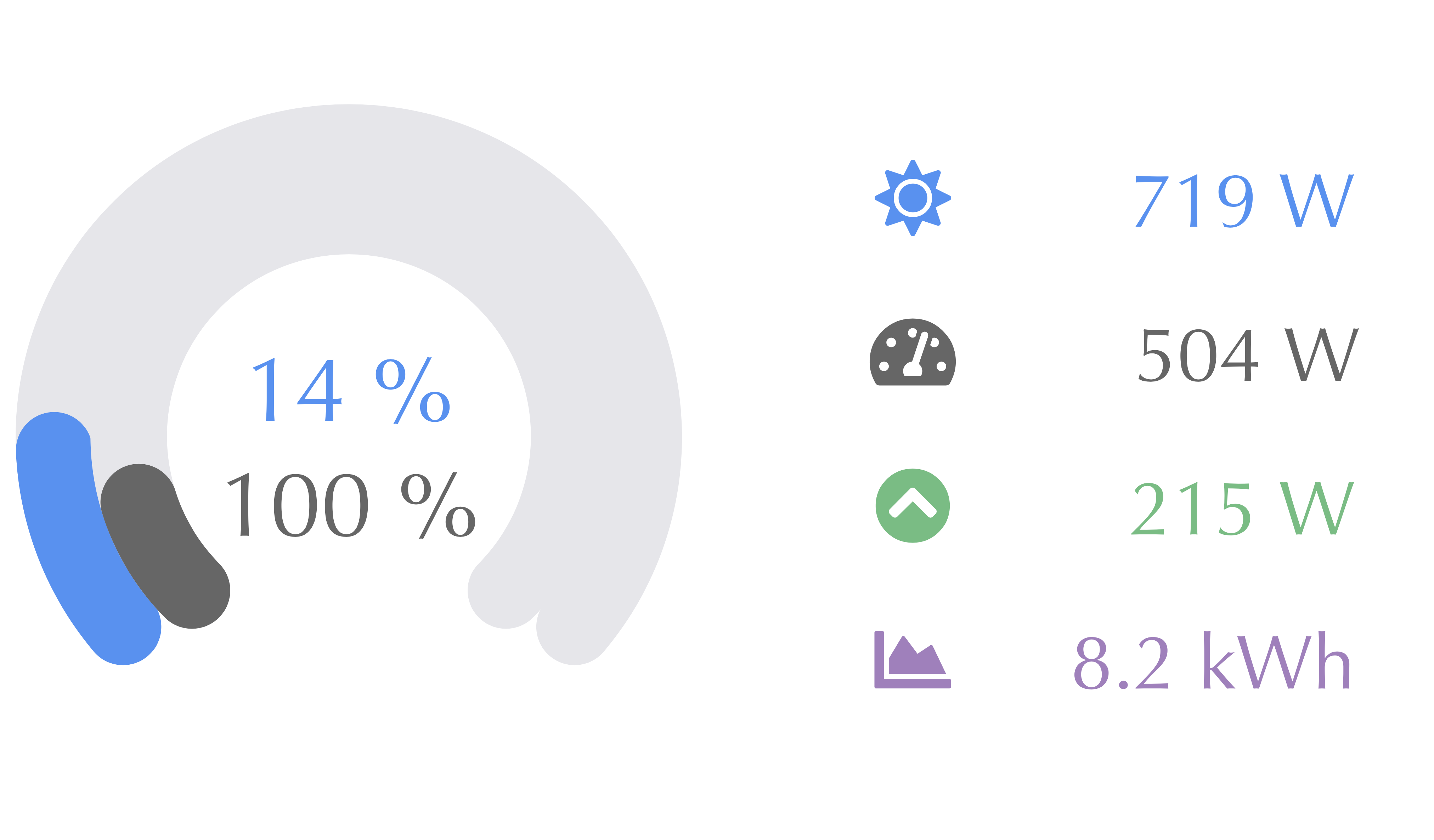
One of the key things I wanted to be able to do was have an easily readable display that shows how much power we are generating (and how much energy we have generated today), but also the current consumption, and the feed in or out right now.

After a bit of work, I came up with a (what I think is) really nice UI. I wrote it using Elixir: mainly because I wanted to write something using Phoenix LiveView. It’s actually a bit too much like Rails for me to want to use it frequently, but I do wish there was something a bit like it for Django.

Anyway, enough of the technology choices, let’s look at the dashboard:

Fronius Dashboard: Daytime View

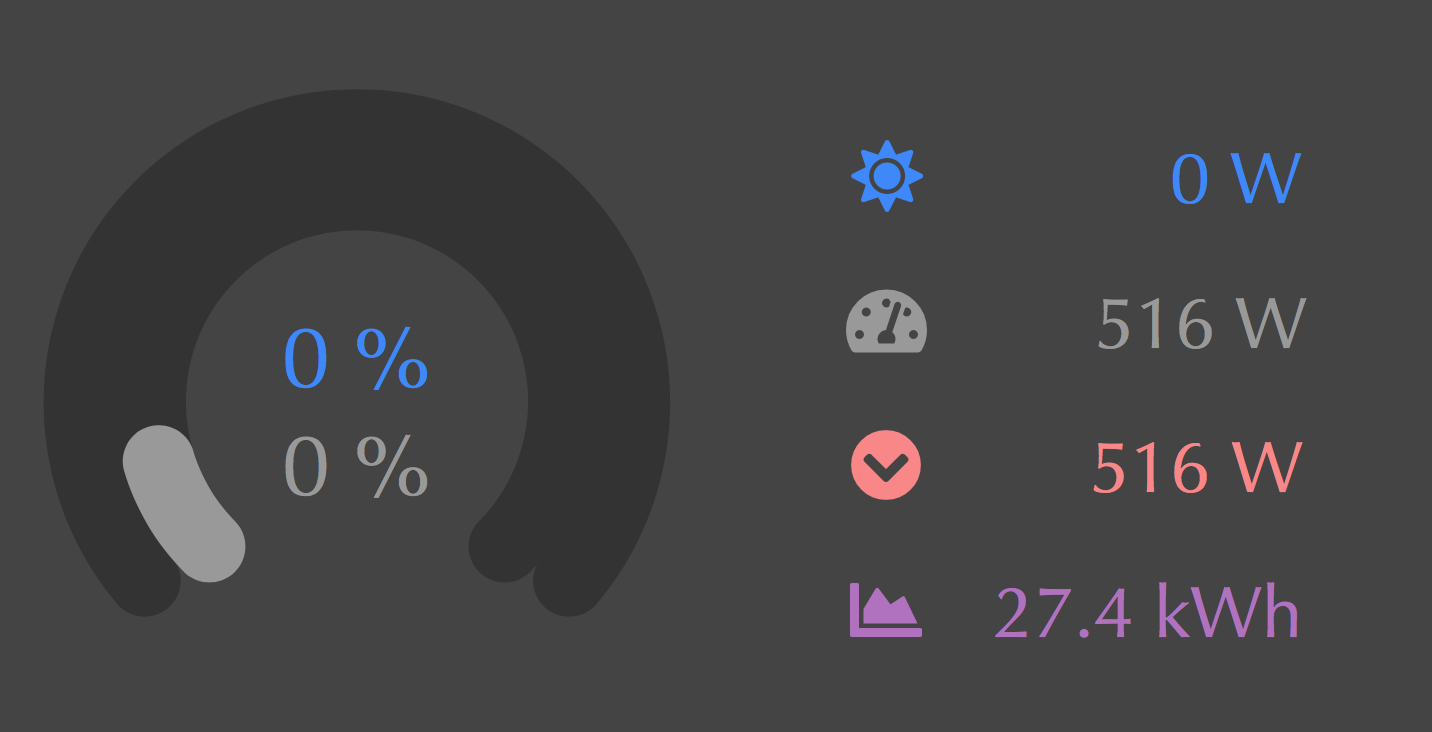
The data is updated every second; and at night time, it goes into a dark mode:

Fronius Dashboard: Nighttime View

Like most of my side projects, this is freely available. You can install this now on any device that runs Docker, as long as it’s amd64 or arm. I’ve built it on a Raspberry Pi 3B+, but I think it should also work on a Raspberry Pi Zero.

$ docker run -it -p 4000:4000 \
    --restart unless-stopped \
    --name fronius-dashboard \
    --env INVERTER=<ip-address-or-hostname> \
    schinckel/fronius-dashboard:latest

This should download the latest version, and start it up. You will need to supply your own inverter’s IP address or hostname: but if you have fronius.lan as the hostname, then you can omit that line.

To make it available outside of your network, you’ll need to forward something to port 4000 of the device that is running this service. I have the aforementioned rPi3B+ running this, an MQTT broker and Node-RED, and my MQTT2HomeKit bridge, and expose only the Fronius Dashboard service to the internet.

It’s also designed to work well as a home screen app on iOS, and possibly Android devices.

There is no warranty, implied or otherwise as to the fitness of this to your purposes, but if you are nice, I’ll try to fix any bugs. You can view the source code at Source Hut.

I’m not sure how it will handle not having a Smart Meter installed.

I’ll also be more than happy to try to make this work with other inverters.


I’ve also been playing around with using nerves-project to build a standalone image that can be burned to a RaspberryPi Zero, but I’m still working through some kinks related to being able to configure that. I’m hoping to have that as a turn-key solution that I can install into some friends who have/are purchasing Fronius inverters.

Basically, I need a mechanism for storing the WiFi credentials on the nerves board, and allow configuring the IP address/hostname of the inverter. I got partway through an admin UI, but it’s not really complete yet.