"Rating is no stars" Playlist
- Comments:
- here.
I use a “Rating is no stars” playlist, but it seems to pick up the tracks rated 1-19 as well. I’m not surprised, in the light of my recent article on the relative play counts of various rated tracks.
I use a “Rating is no stars” playlist, but it seems to pick up the tracks rated 1-19 as well. I’m not surprised, in the light of my recent article on the relative play counts of various rated tracks.
OmniNerd - Articles: Extended iTunes Rating
iTunes has the ability to store ratings of a finer gradient than just the number of stars. Higher rated tracks should be played more, but is this always the case? I needed to know the answer to this.
This is the long-awaited article I wrote for OmniNerd, expanding on the results I obtained in my ratings research and experiment using iTunes. Well worth the read, if I do say so myself!
My biggest hate about iTunes is that if the download of a Podcast fails, it needs to restart the whole download, rather than just resume. This really sucks if you are 21Mb into a 22.5Mb download. Using the technique illustrated in Adding a Podcast to a Pre-Existing Subscription, it’s possible to download the files in another program, such as wget, which can handle resumes. It also tends not to drop out as much as iTunes does when the network is congested. Which it is automatically when three downloads are concurrently occurring. There are some changes that need to be made to the process, but these are really just simplifications. You need to know the URL of the file you want to get, which can be obtained using the following AppleScript:
|
|
Then, set up your http server, and create the same directory structure from your server root. Go to the relevant directory, and download the files you want to grab. Finally, go offline, and point the domain(s) at your own computer. Go back into iTunes, and use the GET button to grab the files from your own ‘server’. Don’t use the Update Podcasts button, or an error may occur. This removes the need to recreate the XML file, which is the most labour intensive part of the process illustrated in the previous post. It works a treat.
For those of you unfamiliar with the application, Mobster acts as a XSPF content resolver to build playlists out of the local music library. This means that if you get a XSPF with filled out metadata (), Mobster will look through your local iTunes library and recreate the playlist with any of the songs you have available.
Basically, XPSF is a playlist file that doesn’t store the track’s location, only title, artist and album. Thus, you can share playlists, and people that have (some or all of) the tracks can then listen to the playlist. I have done some exports of playlists from iTunes, and it is pretty good at matching them up if you re-import the playlist, so I’m not that sure this is that worthwhile.
Under iTunes, Podcast handling is (mostly) an inspired technology. _Podcasts _are handled slightly differently to normal audio, or _Music _files, and differently again to AudioBooks, and Movies. All of which makes perfect sense, as all of these types of files have different purposes. For most people, a Podcast is something they might listen to once, and then discard. I’m not most people. I’m a hoarder, and thus I like to keep of the Podcasts I’ve downloaded. And I like them to be well organised. That means all properly tagged, with reasonable titles. I may want to listen to a particular Podcast again, such as the amazing 000 Emergency episode of Radio Eye (from Radio National), or burn it to a CD to play for students in a class. I’ve also found some MP3 files that are part of a particular Podcast, but have long since been removed from the RSS feed that tell iTunes what files are available. I’ve downloaded these, but needed to be able to get them into iTunes, and make sure they appear in the relevant Subscription. I’ve discovered a way to do this, but at this stage it is a manual process, and can become quite time consuming with many files. You will need the following things to be able to perform this trick nicely:
I’ve done all of this on a Mac, and the instructions below will reflect this. It is possible to do all of this on other systems, but the steps may vary, especially redirecting the requests to your own server. A note will be made of this. The first thing to do is to ensure that your computer has a working Web Server. If your web browser will not report anything working when you try: http://imac/ (or whatever your computer is called), then you will need to enable the server. Under MacOS X, open System Prefences and choose the Sharing tab. Find Personal Web Sharing in the list, and turn it on. You may need to Authenticate as an administrator in order to do this. Now, you need to grab the XML file. Open iTunes, and select the Subscription you wish to add files to, and Ctrl-Click. Choose Show Description from the popup menu. Record the URL. Download a copy of this URL using, for example wget from the terminal. In my case, the command I used was: $ wget -c http://www.abc.net.au/rn/podcast/feeds/mind.xml The URL contains a fair chunk of the information we will need later, so I’ll explain what everything in the above example means:
http:// - the protocol used. This will always be hypertext transfer protocol, as this is the only one that iTunes understands.www.abc.net.au - the name of the server. We will trick iTunes (and every other application, incidentally) into looking on our computer for this server later./rn/podcast/feeds/ - the directory structure on the remote server.mind.xml - the name of the XML file that stores the suscription information.We now need to set up the files in the right place. Find the root directory of your web server. For a Mac, this is likely to be /Library/Webserver/Documents/. Create a new directory within that one, in my case it was called rn. Then create a new directory inside that one, in this case podcast, and so on. Do not create a new directory with the name of the XML file, instead move the XML file into this last directory. Move the audio files into this directory also. Now, open up the XML file in a text editor, and examine it’s contents. You will need to change the values of a heap of stuff in the <item> section(s), ensuring all of the information is accurate. It’s fairly straightforward, but I’ll summarise them anyway.
title - The _Title _as it will appear in iTunes. You can edit the title of a Podcast after it has been downloaded.description - This appears in the _Description _field of iTunes. There seem to be issues with extended characters of some sort. You seem to be able to have a longer description if you have it in the XML file than if you try to add it later using AppleScript.link - the URL of the file.pubDate - the Released Date. Make sure it is a valid date, and the correct one for the Podcast to ensure they appear in the right order within iTunes/iPod.enclosure -This one has three parts that must all be checked.
url - ensure it is the same as the value in link (above).length - this must be the exact size of the file in bytes. This can be obtained on a Mac by using the Get Info command.type - chances are this will already be correct, but if you aren’t using MP3 files, then ensure this reflects that.guid - appears to be the title + the pubDate. I assume that this field is used to see if files are the same. I haven’t experimented to see. I suspect it can really be any value, as long as it is unique within this subscription.itunes:author - The value to go into the iTunes Author field.itunes:summary - iTunes Comment value.itunes:duration - The duration in seconds. Again, available through the Get Info window.Of these, really only enclosure, link, guid and duration are important for now: the remainder can be changed using iTunes later. However, if you have a long description, you might not be able to get it all to appear if you use AppleScript to change it later. I learned this the hard way, and now change the description in the XML file. Now we are up to the tricky part. You need to tell your computer not to look online for a particular server anymore, but to look at your own computer. On a Mac, this is done using NetInfo. Open the / domain, and find machines. Copy the entry localhost, and edit the name so that it reflects the domain name of the server the Podcasts normally live on. In my case, this was www.abc.net.au. If you are using a different OS, you may need to edit /etc/hosts, or the Windows Hosts file. Save your domain. To get the computer to use the new settings reliably, you need to be ‘offline’ - easy for me since I’m on dialup. You will also need to Restart Netinfo Domains after going offline. It may take some time to do the lookup (which has to fail before it looks in the local domain list - which seems to be contra to how I would expect it to work), but after this it will be speedy. Then, simply start up iTunes, and update the required Subscription. It should (very quickly) download all of the podcasts that are ’new’ - although you may need to manually download them depending on your settings. Finally, reload NetInfo, and remove (or better, rename) the server name you entered before. Don’t use something like www2.abc.net.au, as this is still something that may be used by the company. Instead, put a 2 at the end, so it makes the domain name invalid. You may need to restart, I just connected to the internet, and the server in question worked perfectly again. You can now remove all of the files you no longer need - all of the MP3 files will have been copied to your iTunes library. You may wish to hang onto the XML file, incase you need to repeat this for future episodes.
For some reason, copying the data for the description of a Podcast and then pasting this into the XML file I’m creating doesn’t work. In one instance, it just left the field blank when adding this Subscription to iTunes, yet typing this very same information in worked perfectly. Apparently, however, using é, and I assume other extended characters, doesn’t work - you need to encode characters. Otherwise, iTunes decides the XML file is invalid - which it may well be…
Update: the XML file is indeed invalid, unless you have defined an encoding that allows this type of character, such as, at the start:
|
|
I’ve found that some of the older ABC podcast episodes are still on the server, but don’t appear in the XML file. How then do you get them into iTunes? If you download the file, using for example wget, the file is a regular MP3 file. You can import this into iTunes, and it will play, and get most of the info about the Podcast from the ID3 tags. However, it will not be a Podcast. It will be a normal audio file, or what iTunes calls Music. Basically, iTunes will only flag a file as a Podcast if it is downloaded through iTunes. This is crappy for a couple of reasons, the first is that iTunes tries to download 3 files at a time, and this chokes my connection, causing all of them to drop out. It then tries the next file as each one fails, resulting in only the last one in the download queue to actually finish. The second is the example above: that I have some older episodes I want to import. Red Sweater Blog to the rescue. Daniel has written a program called TypeCast, downloadable from the page A Home For Wayward Podcasts, which can sort-of solve the problem. You can set the relevant data in the Podcast, such as name, and description, but not the release date. Nor will it add the file into the previously listed subscription, instead creating a new subscription each time you import it. Apparently these multiple subscriptions, if the have the same name, will only appear once on the iPod, but surely there’s a better way. My plan is as follows:
Now, I’m unfortunately stuck at the first item. There doesn’t seem to be an AppleScript method for getting the URL of a Subscription, let alone the ability to set it. You can change the URL of a Podcast Feed if you own the feed, using a special iTunes XML tag. However, as far as I can see, the only way is to edit my /etc/hosts file (and/or the OS X equivalent) and put in an entry that will override the value. Not really something I want to have to do. And I’m not sure if I can map just one directory to a location, or if I’ll need to create the whole tree under my server’s root directory: http://www.abc.net.au/rn/feeds/mind.xml At least I’ll only need to do that once: all of the Radio National feeds appear to be in the same place, just different XML files.
Note: there is an alternative method of achieving the first item. Rather than change the feed, you can change the setup of your computer, so that the server name referenced in the feed points to your computer’s web server instead. Doing this temporarily is easy if you have a batch of files that need to be imported once only, like an archive from before iTunes was your Podcatcher.
As an adjunct to another project I am working on (basically an extended version of the experimental writeup I did about iTunes Ratings), I had cause to wonder as to the distribution of ratings in my iTunes library, and in other peoples. I may be unusual in that when I import an album, I grab the whole lot. Even if I really only like one track. I just feel some day I may want to listen to the whole lot! Anyway, I came up with the following script to get the data. Mac only, I’m afraid. Possible to write a much slower version that scans the XML file manually, but I’ll leave that as an extension to the avid reader.
|
|
Plotting this data gives the following graph: 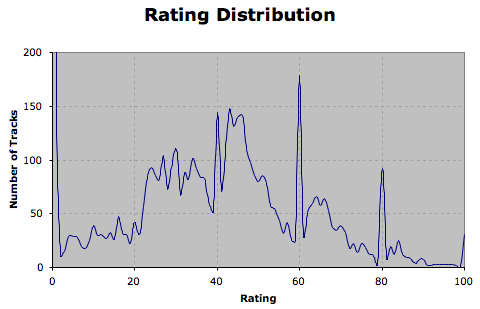 Clearly, there are a couple of spikes, most likely from having rated tracks initially on a normal iTunes scale (0-5 stars). I’ve changed the plot scale so you don’t see the zero-rated tracks, as they skew the data totally, and most of them are in fact unrated, rather than zero rated. If I scale my ratings down to full stars (and discard all of the unrated tracks), then my data looks more like:
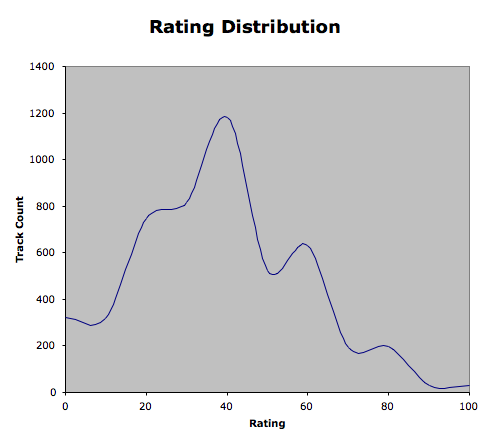
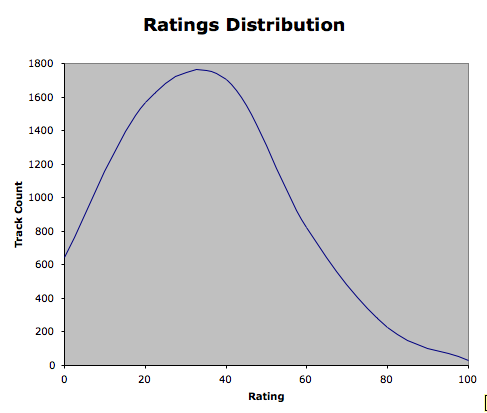 Which is what I expected. And shows that I am probably pretty harsh on my music library - or I dislike most music a bit. • The final plot shows when rating as half-stars, that is, rounding down to the nearest 10, and discarding unrated tracks.
Having done some experiments about play counts, and having read some articles about the randomness of iTunes random play, I have no doubt that it is fairly random. I know from my Computer Science training that it’s virtually impossible to generate completely random data from a computer system - they just aren’t designed that way. It is possible to get the data from an outside source, like keypresses, or the time between them, or the mouse movements, or whatever. I do recall that if you use a function like random(), you need to seed it beforehand, and you should do this with a value that will change each time the program is run, as if you seed random() with a constant, it will return the same sequence of values each time it is run. Still, it amuses me when coincidences occur with iTunes. I got this one tonight:  This is unusual in a couple of ways: the first is that Tim Rogers is a member of You Am I. So, to start with, I had two songs by virtually the same artist one after another. But iTunes could not know this, as there is no reference to You Am I in the second song (which is in the larger part of the window), and no reference to Tim Rogers in the drawer - which contains the data about the song that actually played first. The next unusual thing is that both of them have the name Part 1/One, or at least it’s included in the name. The third weird thing was that two tracks later another Tim Rogers and the Temperance Union track played.
Some Fella’s Heartbreaker • [Tim Rogers And The Temperance Union][2] • [Spit Polish][3] ★★★
[2]: http://www.google.com/search?q=%22Tim Rogers And The Temperance Union%22 [3]: http://www.google.com/search?q=%22Spit Polish%22
If I start listening to a Podcast, and stop, iTunes removes it from my iPod. Not Very Cool!