Scripting iTunes 7

There are a few new things in AppleScript support for iTunes 7.

artwork:

downloaded (boolean, r/o) : was this artwork downloaded by iTunes?

playlist:

special kind (none/Audiobooks/folder/Movies/Music/Party Shuffle/Podcasts/Purchased Music/TV Shows/Videos, r/o) : special playlist kind

track:
episode ID (Unicode text) : the episode ID of the track
episode number (integer) : the episode number of the track
gapless (boolean) : is this track from a gapless album?
season number (integer) : the season number of the track
skipped count (integer) : number of times this track has been skipped
skipped date (date) : the date and time this track was last skipped
show (Unicode text) : the show name of the track
video kind (none/movie/music video/TV show) : kind of video track

Most of these are expected with the addition of the new features: gapless playback and TV/Movie support. At least now we can programmatically change the tags for TV shows. There are two there that are quite interesting: skipped count/date.

They are available as columns in the list views too, I just hadn’t noticed them yet. Now it will be possible to have smart playlist additions like: skipped count < 2.

iTunes 7

Apple released version 7 of iTunes yesterday, and, since I culled my RSS feed list, I haven’t yet read a review of it. Unusually, I’ve already downloaded and installed it (I guess ADSL is worth it, then), and I thought I’d put my thoughts out there. It’s taking me a while to locate the icon in a list - I never realised just how much I’d become accustomed to the green notes - now they are blue. Still, no big deal there. I quite like the new sources list - having Music, Movies, TV Shows and Podcasts listed separately is good - it means I can clean up my library a bit more easily. It does make the sources list rather long, but a little more on that later. The most obvious change is the two new types of view: in addition to the list, you can group by album, or use the cover browser. The third seems pretty cool, but until the gapless playback determination has run, I can’t tell if it will be speedy enough on my setup. My music is all stored on a network hard disk, so the link here may be the bottleneck. Still, being able to flick through the covers is cool. I really like the other new view, which groups the tracks by album. I have come across a slight side-effect though. I have two albums with the same name, but by different artists. This means they alternate when in the standard viewing method, but this can be fixed by setting the Album Artist tag for each track. What’s coolest about this new view is that you can remove the album art viewer from the bottom left of the window, since this is now available in the main view. This allows more space for playlists, as I suggested above. Podcasts have gotten a nice couple of features. The first is that the number of new podcasts is shown like in Mail after the Podcasts source item. The second is that when downloading podcasts they appear in the “Downloads” list, rather than in the “screen” section at the top of the window. I don’t know if they’ve yet implemented resumable downloads, or the ability to alter the number of concurrent downloads. The new interface feels okay too, although they’ve broken system support for double-arrows at each end of a scrollbar. Overall, I think I like it. It will be interesting to see how speed goes…

Fixing dodgy podcast downloads

I listen to Podcasts rather than music most of my commuting time now. One of the ones I subscribe to is The Science Show, from ABC Radio National. Back when I was on dialup, I used to wget the podcasts, and then add them to iTunes using a cool little hack, where I made my computer think it’s own IP address was the address of the abc.net.au server. Then I didn’t have to worry about iTunes not finishing a download, and having to start over. Resumable downloads rock. However, sometimes I would not get all of the file, and not realise. Thus, the other day I was listening to a great segment on Mathematics and the Brain, when the program stopped. I had only grabbed 33 minutes of the 48 minute program. Trying to get iTunes to re-download a podcast is tricky, so instead I used wget to grab the full file, and then deleted the original iTunes file. I then replaced it with my new one. All fixed. This is a side-effect of the fact that iTunes doesn’t keep that good of a track of files. You can move files out from underneath it, and it can’t find them. I’ve come across this from the other perspective - we share the same directory for storing two people’s iTunes libraries, so we don’t have duplicates of all of the same music - but in this case, I used it to my advantage.

Menubar iTunesRating

I wrote a fairly crappy iTunes rating program, but it always took up too much space for my liking. Today i came across a much nicer solution: (Courtesy of Josh Buhler.) The only bad thing is that it only allows for whole-star ratings. I’ll have to remake it so it can do half-star ones…

iTunes Random Songs

Here I am listening to iTunes on Party Shuffle, and on comes:

If You Have A Cross To Bear You May As Well Use It As A Crutch • Moloko • Things To Make And Do ★★

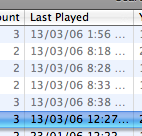
Hang on a bit! I heard this song earlier today. Let’s see when: That selected track is the one I’m listening to, and I last heard it at 12:27pm today. I thought so! And, as you can see, I stopped listening to music at around 2 pm. So, I must have only listened to it about a dozen tracks ago! Okay, so I’m using my Party Shuffle, maybe I’ve only got a small Playlist I’m selecting from. Nope. 6088 tracks. Hang on, I’ve got a playlist showing my Recently Played tracks. Morcheeba has finished now, but I can see how many tracks ago it was since I know the time it played. I heard the same track 25 tracks ago. That means when it first played, it was added immediately to the Party Shuffle again. I’ve read about the randomness of iTunes, but I still love it when something like this happens!

Starfuckers, Inc. • Nine Inch Nails • Triple J Hottest 100 - Volume 7 ½

iTunes Discards Half Star Ratings

iTunes displays half-star ratings, and stores all ratings from 0-100, not just the full star value. However, if you Get Info on a file, and go into the Options tab, you will lose any non full-star rating information that is stored for this track.

Game Show Host • Lo-Tel • Planet Of The Stereos ★★★

Better iTunes Data Insert

I’ve updated my Insert iTunes Data (HTML) script for generating a block of text that describes the current playing iTunes track. This version links to the iTunes Music Store, rather than Google. It is relatively smart, in that the track name link also has the artist name, and the album name does too, as long as the album isn’t a compilation. The only (slight) bug is that the track name seems to need to be just the way iTMS displays it, so having (Live) might stuff up a link. This might be only if there isn’t a Live version in the iTMS.

I Can’t Tell You Why (Live) • Eagles • Hell Freezes Over ★★★★★

Code after the jump.

 1
 2
 3
 4
 5
 6
 7
 8
 9
10
11
12
13
14
15
16
17
18
19
20
21
22
23
24
25
26
27
28
29
30
31
32
33
34
35
36
37
38
39
40
41
42
43
44
45
46
47
48
49
50
51
52
53
54
55
56
57
58
59
60
61
62
63
64
65
66
67
68
69
70
71
72
73
74
75
76
77
78
79
    -- Insert some data about the currently playing iTunes track into browser.
    
    property star : «data utxt2605» as Unicode text
    property half : «data utxt00BD» as Unicode text
    property quarter : «data utxt00BC» as Unicode text
    property threeq : «data utxt00BE» as Unicode text
    property browser : "Firefox"
    property URLprefix : "itms://phobos.apple.com/WebObjects/MZSearch.woa/wa/advancedSearchResults?"
    
    on run {}
    	
    	tell application "System Events"
    		try
    			get process "iTunes"
    		on error
    			return "No Track"
    		end try
    	end tell
    	
    	tell application "iTunes"
    		set theTrack to current track
    		set theArtist to artist of theTrack
    		set theAlbum to album of theTrack
    		set theRating to rating of theTrack
    		set theComp to compilation of theTrack
    		set theTrack to name of theTrack
    		--set trackInfo to {theTrack, theArtist, theAlbum, theRating}
    	end tell
    	
    	set trackLink to "<a href='" & URLprefix & "songTerm=" & HTMLify(theTrack) & "&amp;artistTerm=" & HTMLify(theArtist) & "'>" & theTrack & "</a>"
    	set artistLink to "<a href='" & URLprefix & "artistTerm=" & HTMLify(theArtist) & "'>" & theArtist & "</a>"
    	if theComp is true then
    		set theArtist to "" -- No Artist if album is compilation!
    	end if
    	set albumLink to "<a href='" & URLprefix & "albumTerm=" & HTMLify(theAlbum) & "&amp;artistTerm=" & HTMLify(theArtist) & "'>" & theAlbum & "</a>"
    	
    	set theString to "<p class='itunes'> " & trackLink & " • " & artistLink & " • " & albumLink & " " & myRating(theRating) & "</p>"
    	
    	set the clipboard to theString
    	
    	tell application browser
    		activate
    		tell application "System Events" to keystroke "v" using {command down}
    	end tell
    end run
    
    on HTMLify(someText)
    	set someText to replace(someText, "&", "&amp;")
    	set someText to replace(someText, "\"", "&quot;")
    	set someText to replace(someText, "<", "&lt;")
    	set someText to replace(someText, ">", "&gt;")
    	set someText to replace(someText, " ", "+")
    	set someText to replace(someText, "'", "&apos;")
    	return someText
    end HTMLify
    
    on replace(theText, find, replace)
    	-- Nice replace function
    	set OldDelims to AppleScript's text item delimiters
    	set AppleScript's text item delimiters to find
    	set newText to text items of theText
    	set AppleScript's text item delimiters to replace
    	set theResult to newText as text
    	set AppleScript's text item delimiters to OldDelims
    	return theResult
    end replace
    
    on myRating(theRating)
    	set theResult to ""
    	repeat 5 times
    		if theRating ≥ 20 then
    			set theResult to theResult & star
    		else if theRating ≥ 10 then
    			set theResult to theResult & half
    		end if
    		set theRating to theRating - 20
    	end repeat
    	return theResult
    end myRating

One More Time • Daft Punk • Triple J Hottest 100 - Volume 9 ★★★

Unrated Tracks

I’ve been busily rating all of my iTunes tracks, and consider that I’ve done a very good job. My Unrated playlist (Rating is 0; Played Count is 0; Genre does not contain Classical; Podcast is false) has only 224 tracks. My total library is 7741 tracks, so it’s about 97% done. Not counting Classical tracks and Podcasts, obviously.

Actually, if I take this into account, my Music Library is only 5962 tracks, and I’ve rated about 96%.

Anyway, you get the picture. An overwhelming number of my tracks are rated. So now, I just sit back, and count the money as it rolls in let iTunes choose my music.

I’ve got a Smart Playlist called Party Shuffler, which I set my Party Shuffle to use as the source, and turn on Play higher rated songs more often. The Party Shuffler playlist has the following Logic:

  • Genre is not Classical
  • Last Played is not in the last 3 days
  • Genre is not Holiday
  • Comment does not contain re-import
  • Genre is not Books & Spoken
  • Genre is not Interview
  • Match only checked songs
  • Live Updating

I might be able to get rid of some of the Genre stuff, by having the Skip when shuffling item checked on various tracks, but then I’d need to remember to do this to new music I import.

Oh, and I keep my rating window open, and every now and then re-rate the track that’s playing - especially if I’ve decided I don’t like the track quite so much anymore.

Wipe Out • The Beach Boys • Still Cruisin' ★★

Rounding Ratings

I like that iTunes displays half-star ratings, but I want my tracks rated 51-59 to display this way too. That doesn’t work, but if you use the following script, it will round the ratings of selected tracks to the nearest half-star:

1
2
3
4
5
    tell application "iTunes"
    	repeat with trk in selection
    		set rating of trk to ((rating of trk) / 10 as integer) * 10
    	end repeat
    end tell

I hope Apple don’t include the functionality of odd-rated tracks to play different amounts, otherwise I’ll need to re-rate all of my music. Again.

Getting Real Audio into Podcast

Occasionally, the ABC have items on their programs to which they don’t have the copyright for, and as such they cannot post an MP3 of the program, but will do a Real Audio stream. Meaning you have to use Real Audio to listen to it, and you cannot archive it. Or so it seems. Now, I refuse to use Real Audio: it’s nothing to do with commercial software or anything like that (there is after all a free version), but I just don’t like streaming. I find that on dialup it just doesn’t work well. And, the time I spend at the computer I am generally reading, so listening to anything other than music just doesn’t work well. I much rather listen to Podcasts while commuting. So, how do you get an item into your iTunes Podcast library? You’ll need mplayer. You can find it at the MPlayerOSX Website. Install it, and then add the following to your ~/.profile:

 1
 2
 3
 4
 5
 6
 7
 8
 9
10
11
12
13
14
    function realdump
    {
        if test -f $1 ; then
            realdump `cat $1` 
        else
            export temp=${1/#*\//}
            export filename=${temp/.*/.wav}
            ~/bin/mplayer -cache 128 -vc dummy -vo null -ao pcm -aofile $filename $1
        fi
        if test $# -gt 1 ; then
        shift
        realdump $*
        fi
    }

You’ll also need something to encode in either MP3, or AAC format. faac is great for the latter, LAME for the former. I use faac, and have the following in my ~/.profile:

1
2
3
4
    function faac_podcast
    {
        faac -b 64 -w $1
    }

You’ll want something similar if you use LAME. The ABC has a placeholder MP3 file, that is usually just a short blurb saying they don’t have the ability to put the program up as an MP3. Download this, and then go to the website of the program in question. Find the Real Audio stream, and download the .ram file. Open this in a text editor, and use the Terminal to download the stream using: $ realdump rtsp://www.server.net/path/to/file.ra Then use the following command to encode the file: $ faac_podcast filename.wav This may take some time - although on my computer it was a bit faster than the previous step. In iTunes, ask the Finder to reveal the placeholder file (select it, then use ⌘R, or File - Show Song File). Give the replacement file exactly the same name, except keep the right extension, and copy this file to the same location. If they are the same file format, it will overwrite the placeholder, and you are finished. If not, you need to delete the placeholder file, but not the library entry. Moving the file is not enough, you must delete it! Then, to connect the entry to the replacement file, use ⌘I (Get Info…) and choose to select the file. Choose the replacement file. You can use iTunes to import and convert the file, but for me this was much slower. It requires copying the full WAV file to the library (slow, since mine is on a server), and then converting it to MP3/AAC (again, slow, as it needs to get all of the data back from the server, and then send the new stuff there).