Mac OS X Leopard Upgrade DVD

With my Mac Mini I also got an Upgrade DVD. Now, I wasn’t too fussed about having Leopard on the Media Centre, but I did want it on my laptop. So, I thought, I’ll just insert it into the MacBook Pro, and install from there.

Of course, that would be good if it worked. Which it didn’t. According to the dialog box, I “Don’t have Mac OS X v.4 Installed”.

Which isn’t the case:

Using Disk Utility was odd - for some reason my internal drive was not being mounted by the system.

I’m now trying the disk on a G5 iMac. I don’t know if this is a deliberate inability to install as it is from a Mac Mini, or if it is just an odd error.

later: And it appears like this DVD will not boot a G5 iMac. Or at least, not this one.

num lock on MBP keyboard.

I obviously don’t use my MacBook Pro for much data entry. At least, not numerical data entry.

Like almost every laptop, MBP is lacking a dedicated numeric keypad. However, you can turn on the numeric keypad by using fn-F6.

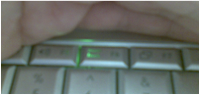
What’s interesting is that there is actually a light under there to indicate when it is on:

When it is on, the remainder of the keys no longer operate - even those not associated with the numeric keypad. The only one I can find that doesn’t have a small ’num-lock’ extra symbol on the key but still operates is the F6 key, which turns num lock back off.

Problems with the MBP

Since Apple fixed the Kernel Panic bug when using encrypted WiFi on battery, I’ve been fairly happy with my MacBook Pro. There are just a couple of issues that have been slightly irking me.

Firstly seems to be to do with predominantly the trackpad and the close/minimize/zoom buttons on the titlebar. If you move the cursor over the close button, and in the process of clicking the button, just miss, and then move the cursor back onto the close button and click, it picks up that the click missed again, and minimises the window.

This seems to be related to another issue related to clicking. Namely, if you click on a window, sometimes it doesn’t register the click (or, more precisely, doesn’t bring the window to the front, or select the element, or provide any other feedback that the click has been registered). If you then click again, it passes a double-click event.

This is not that surprising, since the first click is being registered, just no feedback given. The second aspect of this is what really annoys me. Even if you move the cursor before you click again, as long as it is inside the same UI element, it sends a double-click event.

This means I spend a significant amount of time each day accidentally opening files from the Finder, and then having to wait for the application to open before closing it. Similarly, I have to navigate down to the Dock and un-minimise windows in order to close them.

The other issue is directly related to airport networking still, that the machine still refuses to automatically connect to any network that isn’t the first network in the list. This is regardless of if I have Automatic or Preferred Networks in the By default, join: dropdown in the Network/Airport preference pane.

To clarify - I have three networks I regularly join. I can only have automatic joining of the first network in the list. If I reorder the list, then the network that is now at the top automatically joins. Annoying the pants off me.

Finally, if I am connected to a server, and I sleep my machine, when I wake up I have to wait an insane amount of time for the server to want to disconnect properly. This really sucks, as I have network shares at both home and work that I connect to on a daily basis. I wonder if I can just reduce the timeout that Finder waits before reporting a disconnect.

Airport Update

Apple have released an Airport Update, which hopefully will have fixed the Kernel Panic issue that was plaguing Santa Rosa MacBook Pros. Haven’t had one yet, uptime is 18 mins…

Kernel Panic not fixed

I mentioned in my blog a while ago that the latest update seems to have fixed some wireless networking issues; it appears I was a little too hasty. The Kernel Panic issue is still present, as is the inability to actually force a certificate to be trusted. The third issue, that the machine doesn’t reconnect to a network properly, can be fixed by using unlockupd, which will relaunch lookupd, apparently fixing the problem. Bugger.

More than one preferred network

I have noticed another slight issue with the MacBook Pro and AirPort networks. If you have networks stored in your preferred networks list, ensure that there is only one preferred network wherever you are. If there are two networks, it may not automatically connect to either. Secondly, if you are connected to a WPA Enterprise network, you may find that OS X complains about the certificate, if it has been self-signed by your network admin. You need a root certificate, and tell the OS to trust that, before you can get seamless network connections happening. This does not appear to be an issue with Windows clients.