Cleaning up a required process when you quit

Some time ago, I moved a bunch of our devops tools into a Makefile. I’m not sure exactly what the benefit was then, but there have been some challenges.

One of these was related to having to run multiple processes when performing a task, but cleaning up the dependencies when we finish our task. Specifically, we run a websocket server in production that uses Redis for PubSub. We can safely assume the developer is running redis already, since the rest of the platform also depends upon it. However, to collect the changes from Postgres and publish them into Redis, we use a custom django management command. All this does is listen for postgres notifications and forward them to redis.

$ ./manage.py relay

Mostly we don’t keep this running in development, unless you need to be running the websocket code locally for testing. It is a hassle to remember to start a process and then kill it when you are done, so it would be convenient to start the relay command, then start our websocket worker, and clean up both processes when we quit the worker.

This can be done in a Makefile command:

websocket:
    $(shell trap 'kill 0' SIGINT ; \
        ./manage.py relay & \
        gunicon \
          -k geventwebsocket.gunicorn.workers.GeventWebsocketWorker \
          -workers=1 \
          -reload \
          webocket:application \
    )

The trap command performs the magic - it will kill the background command when the gunicorn worker is killed with Ctrl-C.

I have some other commands which start the background process, and then use kill -0 $(shell ps ax | grep ... | head -n 1 | cut -d ' ' -f 1) to ensure they kill the process on quit, but this sometimes does not work: I should get around to changing them over to this…

Certificate Expiry Dates without extra software

I’ve got my Home Assistant set up and running, and have obtained a Lets Encrypt certificate to allow me to serve it all over HTTPS.

One of the things that you can do is set it up to notify you about expiring certificates. However, this requires the installation of a specific package. Since I’m running Home Assistant in a docker image, I can’t really do this.

However, the tools you need to determine a certificate’s expiry date are already in most systems (otherwise how would they be able to tell if the certificate from a site is still valid?).

echo | \
  openssl s_client -connect example.com:443 2>/dev/null | \
  openssl x509 -noout -dates

This gives the very useful:

notBefore=Nov 28 00:00:00 2018 GMT
notAfter=Dec  2 12:00:00 2020 GMT

We can manipulate this using some other commands to get just the expiry date:

echo | \
  openssl s_client -connect example.com:443 2>/dev/null | \
  openssl x509 -noout -dates | \
  tail -n 1 | \
  cut -d '=' -f 2

Now, we want to turn this into a number of days from today. Bash can do arithmetic, we just need to make the values in the right format. In this case, we’ll get date to give us an epoch value, and divide this by 3600 * 24.

echo $(( ($(date +%s --date "2020-12-02 12:00:00") - $(date +%s)) / (3600 * 24) ))

That gives us 158 days from the day I wrote this. Now let’s put our command instead of the fixed date:

echo $((
  (
    $(date +%s --date "$(echo | \
  openssl s_client -connect example.com:443 2>/dev/null | \
  openssl x509 -noout -dates | \
  tail -n 1 | \
  cut -d '=' -f 2)") - $(date +%s)
  ) / (3600 * 24)
))

Okay, we still get our 158. That’s a good sign.

Now, to put this into a Home Assistant sensor, we need to edit our configuration.yaml. Note that I needed to change the date parsing format inside the docker container to %b %d %H:%M:%S %Y GMT.

sensor:
  - platform: command_line
    name: SSL Certificate Expiry
    unit_of_measurement: days
    scan_interval: 10800
    command: echo $((
      (
        $(date +%s --date "$(echo | openssl s_client -connect example.com:443 2>/dev/null
                                  | openssl x509 -noout -dates
                                  | tail -n 1
                                  | cut -d '=' -f 2)"
                   -D "%b %d %H:%M:%S %Y GMT") - $(date +%s) ) / (3600 * 24) ))

This should give us a sensor that we can then use to create an automation, as seen in the original post.

Don’t forget to change the domain to your Home Assistant hostname!

Scheme line "values"

Years ago, when I first saw TextMate demonstrated, one of the ways it was used as a teaching tool, when teaching Ruby, was to have the current line executed, and the value it returned appended to the current line:

(2 + 3) * 4 / 5 # => 4

That is, pressing Cmd-Shift-Ctrl-E would execute the line, and update the marker.

Today, while playing around with Scheme, I came up with a neat way to do the same type of thing.

Initially, I made it so that it executed the current line, and added/updated the marker. Then, I realised I could load the file, and then execute the current line.

You can create a new bundle command, and bind it to whatever key you want, with a scope selector of source.scheme, Input of Line, Output of Replace Input.

#!/usr/bin/env bash

[[ -f "${TM_SUPPORT_PATH}/lib/bash_init.sh" ]] && . "${TM_SUPPORT_PATH}/lib/bash_init.sh"

# Evaluate the current line in our Scheme interpreter
#
# The interpreter you use should be set in the environment
# variable TM_SCHEME

# The whole file will be loaded, and the current line's value executed,
# and added to the line as a comment.

INTERPRET=${TM_SCHEME}
CMD=$(basename "$INTERPRET")

LINE=`cat /dev/stdin | sed 's/; =>.*//'`
VALUE=`echo $LINE | $INTERPRET --load $TM_FILEPATH | grep ';Value: ' | sed 's/;Value: //'`

echo -n $LINE "; =>" $VALUE

Unfortunately, trailing comments are handled as a seperate line, so getting the ruby-like behaviour of updating all of the ; => comments will have to wait for another day.

arp -a | vendor

I have lots of things on my local network. Most of them behave nicely with the DHCP server, and provide their machine name as part of their DHCP request (Client ID), which means I can see them in the list in Airport Utility.

However, some of them don’t which means I have some blank rows.

It would be nice to be able to figure out which devices these are, especially for those that don’t provide any services (particulary a web interface).

Enter MAC Vendor Lookup.

You can register, and get an API key that will return values in the format you desire.

Then, it’s possible to do:

$ curl --silent http://www.macvendorlookup.com/api/:API_KEY/:MAC_ADDRESS | cut -f 1 -d \|

(I use the pipe delimited version).

This is all well and good, but who wants to have to type them in? Not this guy.

Let’s look at how we can get them from arp -a.

$ arp -a | cut -f 4 -d ' '

Okay, that’s promising, it gives me a list of MAC addreses. Almost. It skips out leading zeros, which the API rejects. And it includes ones that are missing.

Cue about an hour mucking about with the (limited) sed regex docs:

$ arp -a | 
    cut -f 4 -d ' ' | 
    sed -E 's/:([[:xdigit:]]):/:0\1:/g' | 
    sed -E 's/^.:/0&/' | 
    sed -E 's/:(.)$/:0\1/'

Ah, that’s better. Now we have the proper MAC addresses.

Now, we can pipe this information through the API call.

This is where we need to start to get a bit tricky. We need to create a function that will allow us to call the API with a new value each time. You’ll want to stick this in your .bashrc.

function mac_vendor() {
  $API_URL="http://www.macvendorlookup.com/api"
  $API_KEY="<your api key>"
  if [[ $1 ]]; then
    curl --silent "$API_KEY/:API_KEY/$1" | cut -f 1 -d \|
  else
    while read DATA; do
      curl --silent "$API_KEY/:API_KEY/$DATA" | cut -f 1 -d \|
    done
  fi
}

The if statement means we can use it by passing an argument on the command line:

$ mac_vendor 00:00:00:00:00:00
Xerox Corporation

Or by passing through data from stdin:

$ arp -a | 
    cut -f 4 -d ' ' | 
    sed -E 's/:([[:xdigit:]]):/:0\1:/g' | 
    sed -E 's/^.:/0&/' | 
    sed -E 's/:(.)$/:0\1/' |
    mac_vendor

Okay, that’s nice, but we now can’t see which IP address is associated with which vendor.

Let’s move that ugly chained sed call into it’s own function, called normalise_mac_address, which we will also wrap in a while read DATA; do ... done clause, so we can pipe data through it:

function normalise_mac_address() {
  while read DATA; do
    echo $DATA |
      sed -E 's/:([[:xdigit:]]):/:0\1:/g' |
      sed -E 's/^.:/0&/' |
      sed -E 's/:(.)$/:0\1/'
  done
}

Nearly there!

We now need to be able to grab out the IP address and the MAC address from arp, and pass only the MAC address through our conversion functions. By default the bash for … in … construct will iterate through words, so we need to tell it to deal with a line at a time:

function get_all_local_vendors() {
  IFS=$'\n'
  for LINE in `arp -a | cut -f 2,4 -d ' '`; do
    # We have LINE="(<ip.address.here>) <mac:address:here>"
    MAC=`echo $LINE | cut -f 2 -d ' ' | normalise_mac_address`
    IP=`echo $LINE | cut -f 1 -d ' '`
    # We only want ones that were still active
    if [ $MAC != '(incomplete)' ]; then
      VENDOR=`echo $MAC | mac_vendor`
      echo $VENDOR $IP
    fi
  done
}

I’m hardly a bash expert, so there may be a better way of doing things rather than the repeated VARIABLE=`foo thing` construct I keep using.

So, the outcome I get when I run this looks something like:

$ get_all_local_vendors 
Apple, Inc. (10.0.1.1)
Sparklan Communications, Inc. (10.0.1.3)
Devicescape Software, Inc. (10.0.1.4)
Mitrastar Technology (10.0.1.5)
Apple, Inc. (10.0.1.15)
Silicondust Engineering Ltd (10.0.1.16)
Apple Computer (10.0.1.21)
none (10.0.1.255)

Getting rid of that last one is left as an exercise to the reader: the MAC address is FF:FF:FF:FF:FF:FF.
Am I connected remotely?

I now share my dotfiles between the various OS X machines I use daily, using Dropbox and symlinks.

However, I have many aliases and functions that need to act differently if I only have a console session at the machine in question, or a full GUI session.

With bash, this is easy to test:

1
2
3
4
5
6
export EDITOR='nano'
if [[ -z "$SSH_CONNECTION" && $OSTYPE =~ ^darwin ]]; then
export EDITOR='mate --wait'
export TEXEDIT='mate -w -l %d "%s"'
export LESSEDIT='mate -l %lm %f'
fi

Now, if I am remotely connected to a machine, then I will get nano as my editor, but if I am sitting directly in front of it, then it will open Textmate.

View man pages in Preview

It’s not a new concept, but here is my take on it:

 1
 2
 3
 4
 5
 6
 7
 8
 9
10
11
12
13
14
15
16
17
18
19
20
21
22
23
24
25
26
27
28
29
30
31
32
33
34
35
36
37
38
39
40
41
42
43
44
45
46
47
function man {
    # We can get the actual path to the man command here, so we can override
    # it with our function name.
    MAN=`which man`
    # Change these two if you are not on OS X.
    CACHE_DIR="${HOME}/Library/Caches/manpages"
    OPEN="open"
    
    # If we don't have any arguments, use the nice man error message
    if [ ! $1 ]; then
        $MAN
        return
    fi
    
    # If we have an argument that clashes with what we are wanting to be
    # able to do, pass the whole command through.
    for ARG in $*; do
        case $ARG in 
            -[dfkKwtWP])
                $MAN $*
                return;;
        esac
    done
    
    # Make sure our cache directory exists.
    mkdir -p $CACHE_DIR
    # Get the man page(s) that match our query.
    MAN_FILES=`$MAN -w $*`
    for MAN_FILE in $MAN_FILES; do
        # Get the name of the man file, and the section.
        MAN_PAGE=`basename "$MAN_FILE" | cut -d \. -f 1-2 | sed 's/\./(/' | sed 's/$/)/'`
        # Our PDF will be in this location
        PDF_FILE="${CACHE_DIR}/${MAN_PAGE}"
        
        # If we actually have a man file that matches
        if [ -n "$MAN_FILE" ]; then
            # See if the man file is newer than our cached PDF, and if it is,
            # then generate a new PDF. This works even if $PDF_FILE does not
            # exist.
            if [ $MAN_FILE -nt $PDF_FILE ]; then
                $MAN -t $* | pstopdf -i -o "$PDF_FILE"
            fi
            # Then display the file.
            $OPEN "$PDF_FILE"
        fi
    done
}

Tab completion and ssh/open -a

I use the Terminal just as much as the Finder, and have tab-completion turned on in bash. To make it better, you can set it so that it will complete differently depending upon what you have already typed in.

The first one of these tips will autocomplete from the ~/.ssh/known_hosts file, so that when you type in:

$ ssh ma[tab]

1
complete -W "$(echo `cat ~/.ssh/known_hosts | cut -f 1 -d ' ' | sed -e s/,.*//g | uniq | grep -v "\["`;)" ssh

it will autocomplete the servers you ssh to that start with “ma”.

The next one is more complicated - it allows you to complete from all available applications when typing:

$ open -a [tab]

1
complete -W "$(/bin/lsregister -dump | /usr/bin/sed -E -n -e '/\/Applications/{s/^.+ ((\/Applications|\/Developer).+\.app)$/\1/p;}' | \/usr/bin/sed 's/ /\\ /g' | \/usr/bin/sed -e s/\'/\\\\\'/g | /usr/bin/xargs /usr/bin/basename -s '.app' | /usr/bin/sed 's/ /\\\\\\ /g')" open -a

These can be added to one of your bash startup files: mine live in ~/.bashrc.

Changing UNIX shell without actually changing it

Very rarely, I encounter a computer system I have to use regularly, but I don’t have superuser status on. Notably, at Uni, I have access to a SunOS system, where I actually have to use it from time to time. Most of the time this is just via ssh, but sometimes it’s a physical login to a SunRay workstation.

I much prefer bash over other shells, not because it is necessarily better, but that it is just the one I use most of the time. I’ve got some nice systems to help me out, like using a different colour for the user@host string on each machine, so I can easily see which machine the current ssh session is actually logged into.

However, at Uni there are lots of restrictions. We can run /usr/bin/bash, but we can’t change our default shell to it. In fact, we can’t change our default shell at all, which is kinda dumb. I’ve tried all sorts of tricks, but I just can’t do it.

The next step is to have your .login, or whatever, run the shell you want. For me, this is safe-ish, since tcsh (the current default shell) executes the contents of .login, but bash doesn’t. If you are using one shell that uses a particular login or profile file, and you want to change to another which uses the same file, you might struggle, or get stuck in an infinite loop. Which is probably worse.

Just having /usr/bin/bash -login in your .login file will then cause bash to run, and execute the contents of your .profile: without the -login it won’t execute the contents of said file. But what about when you exit the bash shell, using Ctrl-D, or exit, or logout, or whatever?

If you put a logout after the /usr/bin/bash -login line will cause the original shell to logout immediately after leaving the bash shell. Which is exactly what we want.

Now, all I need to do is figure out how to get rid of the line that says : tcsh: using dumb terminal settings.

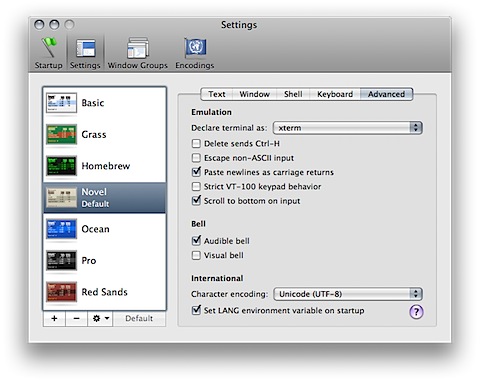
That one’s too easy. Use xterm instead of xterm-color in the Settings➞Advanced area of the Terminal Preferences:

xterm-color.png

UNIX palindromes #1

Thoughts of the Bored » Archived Thought » UNIX palindromes #1

There exist a “test” command and a “tset” command, but tset does not do the reverse of test. I consider this a lost opportunity.

Getting Finder Comments in different languages

bash: mdls filename | grep FinderComment AppleScript: tell application "Finder"     comment of file end tell python: #!/usr/bin/pythonw from appscript import * path = '/Users/NAME/your/path/here' comment = app('Finder').items[path.replace('/', ':')].comment.get()