A Parking Assist for the Garage

My garage is packed, almost to the brim. I have shelving/tool racks along one side, and more things stacked at the back than I’d like. My car fits in, but only just.

I need to reverse in, as the middle of the double garage needs to be on the drivers’ side of my car (and that’s also the side with the charging port, and the charger is between the two cars). There’s enough space for me to back in safely, but if I go too far back, then it’s hard for me to access behind the car. Obviously, if I don’t go in far enough, then I won’t be able to shut the door.

So, over the weekend, I finally got around to making my Parking Assist module.

There is a beam that crosses the opening of the garage, set far enough away from the door so that the roller door will be able to close once that beam is “clear”.

The display is a WS2812 LED ring. When the beam is broken for more than four seconds, the LEDs run an animating red chaser. That gives someone walking through the beam time to clear it without triggering the display. When the beam clears, the whole ring flashes green and then stays green for a minute. If the beam is broken again during that minute, red starts immediately.

I’ve built lots of ESPHome devices in the past, but this one was a bit different: instead of me manually writing it, I used Kagi Assistant to talk through the requirements (and help plan the hardware, as there is a mismatch between the sensor and the board/lights voltages).

Using agentic assistants to work out how to couple all of the bits together was really useful. I didn’t have a level shifter to get the sensor’s 12 V output safely to the ESP32’s 3v3 GPIO, but I did have a MOSFET. I used it as a switch: the sensor output drives the gate through a 10 kΩ resistor, while the source is connected to ground and the drain to GPIO3. With INPUT_PULLUP enabled, the MOSFET pulls GPIO3 low when it switches on. The resistor is in series with the gate; the MOSFET keeps the sensor’s 12 V signal off the ESP32 pin.
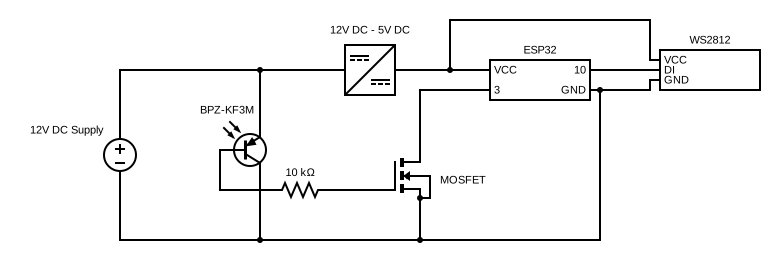
Circuit diagram for the Parking Assist sensor, ESP32, MOSFET, buck converter and LED ring

The ESPHome configuration is split into a small device file and a package for the parking behavior. The device file supplies the pin and timing values; the package defines the ring, beam sensor, and scripts. Here are the parts that make the idle delay behave differently from a re-break during an active parking cycle:

substitutions:
  ring_pin: GPIO10
  beam_pin: GPIO3
  clear_timeout: 60s
  break_delay: 4s

globals:
  - id: g_active
    type: bool
    restore_value: no
    initial_value: 'false'
  - id: g_doorway_blocked
    type: bool
    restore_value: no
    initial_value: 'false'

script:
  - id: beam_break_handler
    mode: restart
    then:
      - if:
          condition:
            lambda: 'return !id(g_active);'
          then:
            - delay: ${break_delay}
      - if:
          condition:
            binary_sensor.is_on: beam_raw
          then:
            - globals.set:
                id: g_active
                value: 'true'
            - globals.set:
                id: g_doorway_blocked
                value: 'true'
            - light.turn_on:
                id: ring
                brightness: 0.6
                effect: Red Chaser

binary_sensor:
  - platform: gpio
    id: beam_raw
    internal: true
    pin:
      number: ${beam_pin}
      mode: INPUT_PULLUP
    filters:
      - delayed_off: 100ms
    on_press:
      - script.stop: green_flash_then_on
      - script.execute: beam_break_handler
    on_release:
      - if:
          condition:
            lambda: 'return id(g_active);'
          then:
            - script.stop: beam_break_handler
            - script.execute: green_flash_then_on

The g_active check decides whether to wait. After an idle wait, the second check confirms the beam is still blocked before setting the blocked state or starting the red chaser. If it cleared during those four seconds, nothing is shown. During an active cycle, that wait is skipped, so a re-break still turns the ring red immediately. The complete package also handles the green flashes and timeout. I’ve also got an additional binary sensor exposed to Home Assistant, but that’s for diagnostic purposes only.

ESPHome variables from Home Assistant

One of my key tenets of Home Automation is that as much stuff should be done locally as possible. Whilst with HomeAssistant, that means “in the local network”, I feel that “in the device” is even better. However, sometimes values should still be configurable (from within Home Assistant), but the device should still work even if there is not (and has never been) a connection to Home Assistant since boot.

For instance, I have a sensor light. The device contains a PIR sensor, with configurable delay, sensitivity and lux settings. This in turn drives a relay connected to a pair of PAR bulbs, and additionally has a green LED. This device usually only has the ESP8266 controlling if the thing should ever turn on at all, but I hacked it so that it exposes the PIR sensor, and allows triggering the relay.

But the delay between the motion no longer being detected and the light turning off should be configurable. I don’t want to have to re-flash the device if I decide to change this value, so I wanted to make it that the value will be fetched from Home Assistant (if it is set).

This turned out to work really well. There are a few parts that need to be set up in the YAML (this is not the complete file):

esphome:
  name: ${device_name}
  platform: ESP8266
  board: esp01_1m
  on_boot:
    - logger.log:
        level: DEBUG
        format: 'Light ON time is set to %d'
        args: ['id(light_on_time)']

globals:
  - id: light_on_time
    type: int
    restore_value: true
    initial_value: '30'

sensor:
  - platform: homeassistant
    id: on_time
    entity_id: input_number.${device_name}
    on_value:
      then:
        - globals.set:
            id: light_on_time
            value: !lambda 'return int(x);'

It really is that simple. The first boot will set the light_on_time variable to 30. Then, when it connects to Home Assistant, it will look for an input_number.<device_name> (which matches the device name). If it finds one (or is ever told about this value changing), then it will commit that new value to the flash, and this will be be restored after a reboot.

There is one other thing we could do here, to make it so that we don’t write the value to the flash if it has not changed (and prevent wear to that, since it is limited to a number of writes):

sensor:
  - platform: homeassistant
    id: on_time
    entity_id: input_number.${device_name}
    on_value:
      then:
        if:
          condition:
            lambda: 'return id(light_on_time) != int(x);'
          then:
            - logger.log:
                level: DEBUG
                format: 'Light ON time changed from %d to %d seconds'
                args: ['id(light_on_time)', 'int(x)']
            - globals.set:
                id: light_on_time
                value: !lambda 'return int(x);'

With regards to a similar problem, detecting if it is dark enough to turn the light on should be something like “a bit before sunset to a bit after sunrise”. I could set the lux threshold on the device, but it would be nice to have motion detection work during the day too.

Here, we can have a global variable sun_is_down that defaults to being true, and is only set to false when the sun comes up. However, we would also want this to trigger when first connecting to Home Assistant and the sun is already up.

We can use a wait_until in our on_boot handler to trigger this:

globals:
  - id: sun_is_down
    type: bool
    restore_value: false
    initial_value: 'true'

esphome:
  ...
  on_boot:
    - wait_until:
        api.connected:
    - if:
        condition:
          sun.is_above_horizon:
        then:
          - logger.log:
              level: DEBUG
              format: 'Sun is up, light will not turn on.'
          - globals.set:
              id: sun_is_down
              value: 'false'
        else:
          - logger.log:
              level: DEBUG
              format: 'Sun is down, light will turn on.'

sun:
  on_sunrise:
    - elevation: 10°
      then:
        - logger.log:
            format: 'The sun is now down, light will turn on.'
        - globals.set:
            id: sun_is_down
            value: 'false'
  on_sunset:
    - elevation: 10°
      then:
        - logger.log:
            format: 'The sun is now up, light will not turn on.'
        - globals.set:
            id: sun_is_down
            value: 'true'

I’ve used a 10° elevation to trigger the light to turn on a bit before sunset and still turn on a bit after sunrise when motion is detected. I haven’t figured out a way to get the same check to apply in the sun.is_above_horizon: check.

Mute the rest of this track.

Working from home means that I don’t use my AirPods as much as I used to: I’m happy to mostly listen to the music my partner (who has worked from home for over a decade) wants to listen to. Lately, that has been NonStop80s.

We play this through the IKEA Symphonisk stereo pair in the dining room, several metres away from the office. The sound is good, and it’s nice not having it come out of the computer speaker.

Because I’m a nut, I have all of this hooked up to Home Assistant, and have one nice automation that will turn off the music that is playing on that speaker when the TV in that room is turned on.

Sometimes the tracks that are played on NonStop80s are really bad. For instance, Snooker Loopy, by Chas and Dave is an absolute piece of shit song. If it weren’t a streaming station, I’d just hit skip.

What would be nice is to be able to have the speakers stop playing, and start playing again when the next track comes on.

Enter “Mute the rest of this track”.

alias: Mute the rest of this track
sequence:
  - condition: state
    entity_id: media_player.dining_room_sonos
    state: playing
  - condition: template
    value_template: '{{ not state_attr("media_player.dining_room_sonos", "is_volume_muted") }}'
  - service: media_player.volume_mute
    data:
      is_volume_muted: true
    entity_id: media_player.dining_room_sonos
  - delay: '1'
  - wait_for_trigger:
      - platform: state
        entity_id: media_player.dining_room_sonos
    timeout: '{{ timeout or 300 }}'
  - service: media_player.volume_mute
    data:
      is_volume_muted: false
    entity_id: media_player.dining_room_sonos
mode: single
icon: 'mdi:volume-mute'
description: Mute the media player until the media_title attribute changes.
fields:
  timeout:
    description: Amount of time to stay muted if the track does not change
    example: 300

This is a script that you can use in Home Assistant to do just that. It will (iff the dining_room_sonos is unmuted, and currently playing), mute that speaker until something else on the speaker changes.

This could be a track change, or a volume change, or anything else. It’s deliberately loose, so that if it was muted, and someone changes the volume, it unmutes immediately.

After a configurable (default 300 seconds) timeout, it will unmute.

I was trying to make it so that you could provide the named media_player entity, but there still seem to be places where you can’t use templates (but need to provide the string directly). I was able to get the conditions to use the variable, but was not able to figure out how to use them in the service calls…and to be honest, I don’t really need it to apply to other players.

Certificate Expiry Dates without extra software

I’ve got my Home Assistant set up and running, and have obtained a Lets Encrypt certificate to allow me to serve it all over HTTPS.

One of the things that you can do is set it up to notify you about expiring certificates. However, this requires the installation of a specific package. Since I’m running Home Assistant in a docker image, I can’t really do this.

However, the tools you need to determine a certificate’s expiry date are already in most systems (otherwise how would they be able to tell if the certificate from a site is still valid?).

echo | \
  openssl s_client -connect example.com:443 2>/dev/null | \
  openssl x509 -noout -dates

This gives the very useful:

notBefore=Nov 28 00:00:00 2018 GMT
notAfter=Dec  2 12:00:00 2020 GMT

We can manipulate this using some other commands to get just the expiry date:

echo | \
  openssl s_client -connect example.com:443 2>/dev/null | \
  openssl x509 -noout -dates | \
  tail -n 1 | \
  cut -d '=' -f 2

Now, we want to turn this into a number of days from today. Bash can do arithmetic, we just need to make the values in the right format. In this case, we’ll get date to give us an epoch value, and divide this by 3600 * 24.

echo $(( ($(date +%s --date "2020-12-02 12:00:00") - $(date +%s)) / (3600 * 24) ))

That gives us 158 days from the day I wrote this. Now let’s put our command instead of the fixed date:

echo $((
  (
    $(date +%s --date "$(echo | \
  openssl s_client -connect example.com:443 2>/dev/null | \
  openssl x509 -noout -dates | \
  tail -n 1 | \
  cut -d '=' -f 2)") - $(date +%s)
  ) / (3600 * 24)
))

Okay, we still get our 158. That’s a good sign.

Now, to put this into a Home Assistant sensor, we need to edit our configuration.yaml. Note that I needed to change the date parsing format inside the docker container to %b %d %H:%M:%S %Y GMT.

sensor:
  - platform: command_line
    name: SSL Certificate Expiry
    unit_of_measurement: days
    scan_interval: 10800
    command: echo $((
      (
        $(date +%s --date "$(echo | openssl s_client -connect example.com:443 2>/dev/null
                                  | openssl x509 -noout -dates
                                  | tail -n 1
                                  | cut -d '=' -f 2)"
                   -D "%b %d %H:%M:%S %Y GMT") - $(date +%s) ) / (3600 * 24) ))

This should give us a sensor that we can then use to create an automation, as seen in the original post.

Don’t forget to change the domain to your Home Assistant hostname!

Smart Devices Aren't (or why connected devices suck)

I love tinkering with gadgets. I’ve put a bunch of sensors around my house, so I can see the temperature in various places, and have a couple of smart light and power devices too. At the moment, they are limited to my laundry (where the hard-wired switch is in the wrong place, due to the moving of a door), my workbench (because the overhead lights there run from a power point, so it was trivial to put in a smart switch), and the lounge room (where I had room in the light fitting to put a Sonoff Mini).

In all of these cases, with the exception of the Laundry, since the switch is not really accessible, I have taken great care to ensure that the physical switches still toggle the light. In that case I have an Ikea bulb connected to an Ikea dimmer.

In my study, I have a desk lamp that has a smart (dimmable) bulb in it, and it irks me no end that I have to use a smart device or computer to turn it on or off. I will be getting some more of the Ikea dimmers to alleviate this, but in the mean time, it’s a pain to turn on or off.

Having said that, I love the option of being able to automate power and lighting, or turn things off from a distance. I just don’t like that being the only way.

I installed Home Assistant on the weekend. But, in order to fit that onto my Raspberry Pi, I needed to use a bigger Micro SD card.

Which meant I needed to clone the old one.

Which took several hours.

I’d already installed Home Assistant before running out of space, and had converted a couple of my esphome devices to use the API instead of just MQTT for connection, including the lounge room light.

Now, it turns out, by default there is an “auto reboot if API not found in 15 minutes” setting, which meant that during the four or five hours it took to create an image of the Micro SD, verify this, copy to a new SD card, and then verify that, my lights (and a powerboard in my office) would flick off every 15 minutes. Likewise, if they cannot connect to a WiFi access point they will power cycle. I believe this second one can be resolved using a Captive AP setting that will mean if they can’t connect to a network, they will create their own.

Which really got me thinking. Smart devices should continue to work in every way possible when they don’t have access to the local network, or the internet. In my case, my smart devices do not have access to the internet anyway, because they don’t need to. However, the point is the same.

In situations where a network connection, or even worse, a working connection to a server that you don’t control, is no longer available, you dont’ want your lights or god forbid, your coffee machine to not be able to perform their simple task.

This worries me somewhat about the current trends in smart homes. At some point, companies will stop supporting their devices (this has already happened), and they will become less useful than their dumb counterparts. And add further to our global waste problems.

But having a significant system outage (even an intentional one, like in my case), made me think about other aspects of my home automation as well.

I’ve been using NodeRED for a couple of automation tasks. One of them was to have different grind lengths for my coffee grinder, and making this available to Siri.

However, with the device running NodeRED not operating, I was no longer able to rely on this.

I was heading this way philosophically before, but (OMG NO COFFEE) this just cemented something else in my mind. Automations, where they don’t rely on interaction between multiple devices, should live on the local device where possible. Further to this, where the interaction between devices is required for the automation (like the PIR sensor in the laundry I have that turns on the Ikea lightbulb), the devices should connect directly to one another, without requiring some other mechanism to trigger the automation.

In my case, I have a physical button that I press to trigger a long grind. But, the grind only stops if the NodeRED server tells it to. And, I had no way to (when NodeRED was not running), trigger a short grind.

I was able to fix this: I now have a short press triggering a long grind, and a long press triggering a short grind. That seems backwards, but since I mostly do a long grind in the morning before I’ve had time to properly wake up, I want that the easiest one to trigger…


Having to program this in my esphome firmware instead of NodeRED made for an interesting exercise. Because we need to turn off the device after a period of time, but need to be aware of other events that have happened in the meantime, we need to use scripts.

script:
  - id: short_grind
    then:
      - switch.turn_on: relay
      - delay: 13s
      - switch.turn_off: relay
  - id: long_grind
    then:
      - switch.turn_on: relay
      - delay: 17s
      - switch.turn_off: relay

Whenever our relay turns on, we want to start our long grind script, so that even if the relay was triggered some other way than through the script, it will turn off after 17s if not before. Whenever it turns off, we want to stop any instances of our scripts running. We can also use Template Switches to have logical devices we can use to trigger the different scripts, either from Home Assistant, or from button presses:

switch:
  - platform: gpio
    id: relay
    pin: GPIO2
    restore_mode: ALWAYS_OFF
    on_turn_on:
      - script.execute: long_grind
    on_turn_off:
      - script.stop: short_grind
      - script.stop: long_grind
  - platform: template
    name: "Grind a Single"
    optimistic: true
    id: grind_a_single
    icon: mdi:coffee-outline
    turn_on_action:
      - script.execute: short_grind
      - script.wait: short_grind
      - switch.template.publish:
          id: grind_a_single
          state: OFF
    turn_off_action:
      - switch.turn_off: relay
  - platform: template
    name: "Grind a Double"
    optimistic: true
    id: grind_a_double
    icon: mdi:coffee
    turn_on_action:
      - script.execute: long_grind
      - script.wait: long_grind
      - switch.template.publish:
          id: grind_a_double
          state: OFF
    turn_off_action:
      - switch.turn_off: relay

Both of these template switches will also turn off the grinder when toggled off if they are currently on.

There’s only one more bit of logic that’s required, and that’s the handling of the physical button. I wanted this to trigger either length based on the amount of time that the button is held down for, but I also want a UX affordance of knowing when you have held it down long enough to trigger the alternate action. Finally, if it’s on, any type of press should turn it off, and not trigger a new grind.

binary_sensor:
  - platform: gpio
    pin:
      number: GPIO14
      inverted: true
      mode: INPUT_PULLUP
    on_press:
      - light.turn_on:
          id: led
          transition_length: 0s
      - delay: 500ms
      - light.turn_off:
          id: led
          transition_length: 0s
    on_click:
      - max_length: 350ms
        then:
          - if:
              condition:
                - switch.is_on: relay
              then:
                - switch.is_off: relay
              else:
                - script.execute: long_grind
      - min_length: 500ms
        max_length: 2s
        then:
          - if:
              condition:
                - switch.is_on: relay
              then:
                - switch.is_off: relay
              else:
                - script.execute: short_grind

Remember that the turning off of the relay will stop any running scripts.

So, now, when you hold down the button, when the light turns off, you can release it and it will trigger a short grind. If you just tap the switch and release it immediately, it will trigger a long grind. Any button press when the grinder is already running will turn it off.