Smart Devices Aren't (or why connected devices suck)

I love tinkering with gadgets. I’ve put a bunch of sensors around my house, so I can see the temperature in various places, and have a couple of smart light and power devices too. At the moment, they are limited to my laundry (where the hard-wired switch is in the wrong place, due to the moving of a door), my workbench (because the overhead lights there run from a power point, so it was trivial to put in a smart switch), and the lounge room (where I had room in the light fitting to put a Sonoff Mini).

In all of these cases, with the exception of the Laundry, since the switch is not really accessible, I have taken great care to ensure that the physical switches still toggle the light. In that case I have an Ikea bulb connected to an Ikea dimmer.

In my study, I have a desk lamp that has a smart (dimmable) bulb in it, and it irks me no end that I have to use a smart device or computer to turn it on or off. I will be getting some more of the Ikea dimmers to alleviate this, but in the mean time, it’s a pain to turn on or off.

Having said that, I love the option of being able to automate power and lighting, or turn things off from a distance. I just don’t like that being the only way.

I installed Home Assistant on the weekend. But, in order to fit that onto my Raspberry Pi, I needed to use a bigger Micro SD card.

Which meant I needed to clone the old one.

Which took several hours.

I’d already installed Home Assistant before running out of space, and had converted a couple of my esphome devices to use the API instead of just MQTT for connection, including the lounge room light.

Now, it turns out, by default there is an “auto reboot if API not found in 15 minutes” setting, which meant that during the four or five hours it took to create an image of the Micro SD, verify this, copy to a new SD card, and then verify that, my lights (and a powerboard in my office) would flick off every 15 minutes. Likewise, if they cannot connect to a WiFi access point they will power cycle. I believe this second one can be resolved using a Captive AP setting that will mean if they can’t connect to a network, they will create their own.

Which really got me thinking. Smart devices should continue to work in every way possible when they don’t have access to the local network, or the internet. In my case, my smart devices do not have access to the internet anyway, because they don’t need to. However, the point is the same.

In situations where a network connection, or even worse, a working connection to a server that you don’t control, is no longer available, you dont’ want your lights or god forbid, your coffee machine to not be able to perform their simple task.

This worries me somewhat about the current trends in smart homes. At some point, companies will stop supporting their devices (this has already happened), and they will become less useful than their dumb counterparts. And add further to our global waste problems.

But having a significant system outage (even an intentional one, like in my case), made me think about other aspects of my home automation as well.

I’ve been using NodeRED for a couple of automation tasks. One of them was to have different grind lengths for my coffee grinder, and making this available to Siri.

However, with the device running NodeRED not operating, I was no longer able to rely on this.

I was heading this way philosophically before, but (OMG NO COFFEE) this just cemented something else in my mind. Automations, where they don’t rely on interaction between multiple devices, should live on the local device where possible. Further to this, where the interaction between devices is required for the automation (like the PIR sensor in the laundry I have that turns on the Ikea lightbulb), the devices should connect directly to one another, without requiring some other mechanism to trigger the automation.

In my case, I have a physical button that I press to trigger a long grind. But, the grind only stops if the NodeRED server tells it to. And, I had no way to (when NodeRED was not running), trigger a short grind.

I was able to fix this: I now have a short press triggering a long grind, and a long press triggering a short grind. That seems backwards, but since I mostly do a long grind in the morning before I’ve had time to properly wake up, I want that the easiest one to trigger…


Having to program this in my esphome firmware instead of NodeRED made for an interesting exercise. Because we need to turn off the device after a period of time, but need to be aware of other events that have happened in the meantime, we need to use scripts.

script:
  - id: short_grind
    then:
      - switch.turn_on: relay
      - delay: 13s
      - switch.turn_off: relay
  - id: long_grind
    then:
      - switch.turn_on: relay
      - delay: 17s
      - switch.turn_off: relay

Whenever our relay turns on, we want to start our long grind script, so that even if the relay was triggered some other way than through the script, it will turn off after 17s if not before. Whenever it turns off, we want to stop any instances of our scripts running. We can also use Template Switches to have logical devices we can use to trigger the different scripts, either from Home Assistant, or from button presses:

switch:
  - platform: gpio
    id: relay
    pin: GPIO2
    restore_mode: ALWAYS_OFF
    on_turn_on:
      - script.execute: long_grind
    on_turn_off:
      - script.stop: short_grind
      - script.stop: long_grind
  - platform: template
    name: "Grind a Single"
    optimistic: true
    id: grind_a_single
    icon: mdi:coffee-outline
    turn_on_action:
      - script.execute: short_grind
      - script.wait: short_grind
      - switch.template.publish:
          id: grind_a_single
          state: OFF
    turn_off_action:
      - switch.turn_off: relay
  - platform: template
    name: "Grind a Double"
    optimistic: true
    id: grind_a_double
    icon: mdi:coffee
    turn_on_action:
      - script.execute: long_grind
      - script.wait: long_grind
      - switch.template.publish:
          id: grind_a_double
          state: OFF
    turn_off_action:
      - switch.turn_off: relay

Both of these template switches will also turn off the grinder when toggled off if they are currently on.

There’s only one more bit of logic that’s required, and that’s the handling of the physical button. I wanted this to trigger either length based on the amount of time that the button is held down for, but I also want a UX affordance of knowing when you have held it down long enough to trigger the alternate action. Finally, if it’s on, any type of press should turn it off, and not trigger a new grind.

binary_sensor:
  - platform: gpio
    pin:
      number: GPIO14
      inverted: true
      mode: INPUT_PULLUP
    on_press:
      - light.turn_on:
          id: led
          transition_length: 0s
      - delay: 500ms
      - light.turn_off:
          id: led
          transition_length: 0s
    on_click:
      - max_length: 350ms
        then:
          - if:
              condition:
                - switch.is_on: relay
              then:
                - switch.is_off: relay
              else:
                - script.execute: long_grind
      - min_length: 500ms
        max_length: 2s
        then:
          - if:
              condition:
                - switch.is_on: relay
              then:
                - switch.is_off: relay
              else:
                - script.execute: short_grind

Remember that the turning off of the relay will stop any running scripts.

So, now, when you hold down the button, when the light turns off, you can release it and it will trigger a short grind. If you just tap the switch and release it immediately, it will trigger a long grind. Any button press when the grinder is already running will turn it off.
Smart Lights or Smart Switches, or my philosophy of home automation

I really like home automation. Being able to see when things are turned on, and being able to turn them off remotely, or build automations around events in the home is fun. I’ve built a garage door opener, a bunch of temperature, humidity and air pressure sensors, and played around with various light bulbs and switches.

I haven’t invested deeply in any platform: for a couple of reasons. I have some of the Sonoff devices, and like that it’s possible to flash my own firmware. This allows me to lock down the device so it can only connect to the one MQTT broker in my network: indeed, my IoT devices are all on a seperate network that has very strict limits.

But that’s not what I want to talk about today. I want to talk about smart lights and smart switches, and why switches are superior.

I don’t live by myself. I have a family, none of whom share my level of excitement about smart devices, but all of whom need to still turn lights on and off. They don’t have an Apple Watch (or iPhone, in most cases), and should not have to use one to turn the lights on.

In fact, I should not have to use my watch or phone to toggle the lights either. We have managed as a society to come up with a really simple system for controlling lights: you flick the switch, and the light toggles.

Direct control of lights using the existing switches is the number one priority of a smart light system. Having a smart bulb that you can turn off using Siri, but then means you need to turn the switch-off-and-then-back-on to get it to turn on is not acceptable.

Likewise, requiring someone to use a smart device to turn a light on is unacceptable.

Having a switch that prevents the smart light from being smart (ie, when it’s off, you have to use the switch to turn it on) is also unacceptable.

This makes existing smart bulbs a non-event for me. Even if you have a duplicate “smart” switch next to an existing switch, there’s still the chance someone will turn off the switch that needs to stay on.

What is a much better solution is to have the switch itself be smart. In most cases, that means the switch will no longer be mechanical, although it could be a press button. There are a bunch of smart switches that perform this way: they work manually, but also still allow an automated or remote toggle of the state.

These switches will not work in my home.

Pretty much all of these (except one exception from Sonoff, see this video for a really nice description of how this works) require a neutral wire at the switch. It seems that my house is wired up with the neutral at the light only, and then only a pair of wires (live, and switched live) that travel down to the switch. Thus, the switch is wired in series with the live wire, and the neutral is only connected directly to the fitting. Jonathon does a really good job in the above-linked video of describing the problem.

There is an alternative solution. Sonoff also make another device, the Sonoff Mini. This one is pretty small (much smaller than the Sonoff Basic), and can be wired up and programmed to behave just like a traditional hallway switch: toggling either the manual or smart switch will result in the lights toggling. The nice thing about these is that they have the new DIY mode (just pop them open, add a jumper, and you can flash them without having to connect header pins). In fact, I even wrote a script to automate the process. It’s not quite perfect, but it’s been good for flashing the five of these that I currently own.

You can then have the mini connected up to the light (at least, in other countries you can do this yourself: in Australia this is illegal unless you are an electrician, so be aware of that), and have the switch connected just to the switch pins on the mini. Bingo, smart switches the right way. When the smart fails, the switch still works the same as they have for generations.

(Unless the microcontroller itself dies, but that’s a problem I have not as yet solved).


As an aside, I wanted to comment on the setup from Superhouse. It’s quite nifty: all of the switches are low voltage, and control relays back in the switchboard. However, it relies on the logic running in a computer (and running JavaScript!) to connect which switch to which light.

This to me feels wrong. It’s better than having those connections over WiFi, but it still means there is a single point of failure. I think the architecture I have used - smart switches that are independent, and if they fail to connect to WiFi continue to work just the same as an old dumb switch - is superior. It’s more like the philosophy I have with web pages: the pages should still work when all of the JavaScript breaks, but when it doesn’t break, they can be nicer (and have some cool affordances).

To that end, I’ve tried to make each little module of my smart home somewhat independent. For instance, having an IR sensor connected to the same microcontroller that controls the lights that sensor means that even if WiFi breaks, the lights still behave exactly the same way.

Adding a PIR sensor to an Arlec Smart LED Strip

I built a shed on Australia Day.

Actually, I built two of them over the Australia Day Long Weekend. I bought them from easyshed.com.au, and they were pretty nifty. Specifically, I bought a couple of the off the wall sheds, to attach them to the wall of my garage. There’s already a concrete path there that I was able to use as the floor.

One of the sheds is longer than the others, and is used for storage of tools. Mostly I need to get stuff during the day, but sometimes at night I may need to access something from in there. So, I bought a 2m Grid Connect LED Strip Light. It’s colour changing, but I’m not really that fussed about the colours: this one has a Warm White LED too, so that’s better than trying to twiddle the colours to get the right temperature.

Being Grid Connect, it’s really Tuya, which means it’s flashable. So I did. I’ve got a nice esphome firmware on there, which hooks it up to HomeKit via my MQTT bridge.

I wasn’t really able to get the colour parts working correctly, so I just disabled those pins, and use the light in monochromatic mode.

However, being the tinkerer I am, I opened it up to have a look inside. It’s got one of the standard Tuya mini-boards, in fact a TYWE3S.

This exposes a bunch of pins, most of which were in use:

  • GPIO 0: (Used during boot)
  • GPIO 2: UART0 (TX)
  • GPIO 4: Red LED channel
  • GPIO 5: Warm White LED channel
  • GPIO 12: Green LED channel
  • GPIO 13: unused
  • GPIO 14: Blue LED channel
  • GPIO 15: (Used during boot)
  • GPIO 16: unused

Because the LED strip runs at 12V, I was able to use this to power a PIR sensor, which I then hooked up to GPIO 13. I also tried to connect a DS18B20 temperature sensor to GPIO 16, but was not able to get it to be recognised. From the page linked above, perhaps I needed a pull-up resistor, however, I didn’t really need a temperature sensor.

Having a PIR sensor on the LED strip is worthwhile, however. Otherwise, you’d need to manually turn the lights on when going into the shed.

Having a sensor light is fantastic, but at times you might want the light to stay on, even when it does not detect motion. To achieve this, I have a global variable manual_override, that is set when the light is turned on “manually” (using HomeKit, as there is no physical switch). When this variable is set, the light will not turn off when motion is no longer detected.

I also found it was simpler to have the motion detector (binary_sensor in esphome) have a “delayed off” filter for the period I wanted the light to stay on for, rather than try to manage that in conjunction with the manual override.

The full YAML follows:

esphome:
  name: $device_name
  platform: ESP8266
  board: esp01_1m
  on_loop:
    then:
      - if:
          condition:
            not:
              mqtt.connected:
          then:
            - globals.set:
                id: has_connected_to_mqtt
                value: 'false'

globals:
  - id: has_connected_to_mqtt
    type: bool
    restore_value: no
    initial_value: 'false'
  - id: manual_override
    type: bool
    restore_value: no
    initial_value: 'false'

light:
  - platform: monochromatic
    name: "White"
    id: white
    output: white_channel
    restore_mode: ALWAYS_OFF
    default_transition_length: 0.25s

output:
  - platform: esp8266_pwm
    pin:
      number: GPIO5
    id: white_channel
    inverted: False

sensor:
  - platform: wifi_signal
    name: "WiFi signal sensor"
    update_interval: 5min

binary_sensor:
  - platform: gpio
    pin: GPIO13
    name: "PIR Sensor"
    device_class: motion
    id: pir
    filters:
      - delayed_off: 15s
    on_press:
      then:
        - mqtt.publish:
            topic: HomeKit/${device_name}/MotionSensor/MotionDetected
            payload: "1"
        - if:
            condition:
              light.is_off: white
            then:
              - light.turn_on: white
              - mqtt.publish:
                  topic: HomeKit/${device_name}/Lightbulb/On
                  payload: "1"
    on_release:
      - mqtt.publish:
          topic: HomeKit/${device_name}/MotionSensor/MotionDetected
          payload: "0"
      - if:
          condition:
            lambda: 'return id(manual_override);'
          then:
            - logger.log: "Manual override prevents auto off."
          else:
            - logger.log: "Turning off after motion delay."
            - if:
                condition:
                  - light.is_on: white
                then:
                  - light.turn_off: white
                  - mqtt.publish:
                      topic: HomeKit/${device_name}/Lightbulb/On
                      payload: "0"

ota:

logger:

mqtt:
  broker: "mqtt.lan"
  discovery: false
  topic_prefix: esphome/${device_name}
  on_message:
    - topic: HomeKit/${device_name}/Lightbulb/Brightness
      then:
        - logger.log: "Brightness message"
        - globals.set:
            id: manual_override
            value: 'true'
        - light.turn_on:
            id: white
            brightness: !lambda "return atof(x.c_str()) / 100;"
        - globals.set:
            id: has_connected_to_mqtt
            value: 'true'

    - topic: HomeKit/${device_name}/Lightbulb/On
      payload: "1"
      then:
        - logger.log: "Turn on message"
        - if:
            condition:
              and:
                - binary_sensor.is_off: pir
                - lambda: "return id(has_connected_to_mqtt);"
            then:
              - globals.set:
                  id: manual_override
                  value: 'true'
              - logger.log: "Manual override enabled"
            else:
              - globals.set:
                  id: manual_override
                  value: 'false'
              - logger.log: "Manual override disabled"
        - light.turn_on:
            id: white
        - globals.set:
            id: has_connected_to_mqtt
            value: 'true'
    - topic: HomeKit/${device_name}/Lightbulb/On
      payload: "0"
      then:
        - logger.log: "Turn off message"
        - if:
            condition:
              lambda: 'return id(has_connected_to_mqtt);'
            then:
              - light.turn_off:
                  id: white
              - globals.set:
                  id: manual_override
                  value: 'false'
              - logger.log: "Manual override disabled"
        - globals.set:
            id: has_connected_to_mqtt
            value: 'true'

  birth_message:
    topic: HomeKit/${device_name}/Lightbulb/On
    payload: "1"
  will_message:
    topic: HomeKit/${device_name}/Lightbulb/On
    payload: "0"

There’s also some logic in there to prevent the light turning off and then back on when it first connects to the MQTT broker and is already turned on.

NodeRED Coffee Grinder Redux

I built a Node-RED flow for my Coffee Grinder. There was a very subtle bug.

There are four ways that you can start the grinder:

  • Trigger an HTTP Request for a Single
  • Trigger an HTTP Request for a Double
  • Start the grinder manually using the button on the socket
  • Start the grinder using HomeKit or MQTT

This is all fine, and 18 seconds after a manual trigger, the grinder will turn off.

Except, if you manually stop the grinder, and then restart it before the initial 18 seconds has elapsed, it will still turn of at that 18 second point. Which, whilst probably okay, is still frustrating.

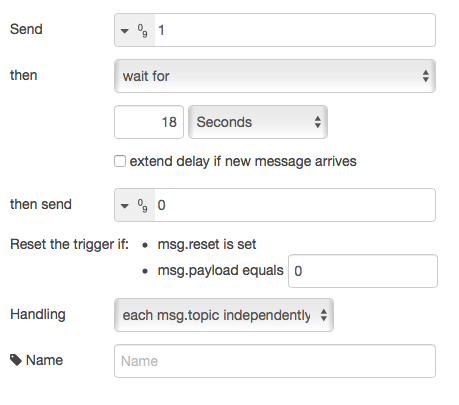
What I wanted to do instead is “cancel” a flow, if the switch is turned off (in any way).

It turns out there is a way to use the “Trigger” node to get this behaviour:

trigger

This allows me to simplify the flow, because the values I need to turn things on and off (1 and 0) are the same ones we want to use to trigger and reset.

coffee-flow

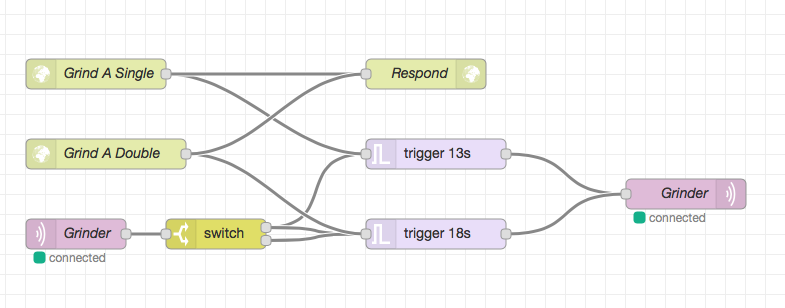
I found I needed to respond to the HTTP request from Siri Shortcuts immediately, because the timeout appears to be shorter than my grind time. It would have been nice to be able to respond when the grind had finished: perhaps I could do something where it returns bytes once per second until it’s done, but for now, this works great.


It actually got me thinking: I wonder how maintainable a really complex project would be in Node-RED.

Hey Siri, Grind me a Double

We have a spare coffee grinder at work: it’s the same model I have at home, a Sunbeam Cafe Series EM0480. They are a pretty good coffee grinder: you can get them for around $200 or less, and with the conical burrs, they grind a nice consistency of coffee.

The one at work is somewhat surplus: it was the one we were using at the office, but it needs a new spacer because it will not grind fine enough to make a decent cup of coffee. I’ve been meaning to get one from eBay (I’ve had to do that to two other grinders).

So, I bought it home to attempt to hack in a timer circuit, so I could trigger it to grind for 11 or 16 seconds: the amount of time I normally count in my head when grinding a single or a double. It would be even better to have it weight based, and I even have some load sensor ICs coming, but I’m still not exactly how I’ll mount the actual load cell(s).

In the meantime, I bought an Arlec Grid Connect socket from Bunnings today. It’s just a pass-through, but can switch on/off automatically. And, importantly, like the plug I re-flashed the other week, it runs Tuya, so can be flashed without having to pull it to bits.

There is a bit of trial-and-error when doing that though: not with the actual flashing, but with determining which GPIO pins connect to which switch(es), or lights/relays.

I used a temporary firmware to help make that simpler:

substitutions:
  device_name: test_rig

wifi:
  ssid: !secret ssid
  password: !secret password

  ap:
    ssid: ${device_name}_fallback
    password: !secret password

captive_portal:

esphome:
  name: $device_name
  platform: ESP8266
  board: esp01_1m

binary_sensor:
  - platform: status
    name: "Status"

  - platform: gpio
    pin:
      number: GPIO0
      inverted: true
      mode: INPUT_PULLUP
    name: GPIO0

  - platform: gpio
    pin:
      number: GPIO1
      inverted: true
      mode: INPUT_PULLUP
    name: GPIO1

  - platform: gpio
    pin:
      number: GPIO2
      inverted: true
      mode: INPUT_PULLUP
    name: GPIO2

  - platform: gpio
    pin:
      number: GPIO3
      inverted: true
      mode: INPUT_PULLUP
    name: GPIO3

  - platform: gpio
    pin:
      number: GPIO4
      inverted: true
      mode: INPUT_PULLUP
    name: GPIO4

  - platform: gpio
    pin:
      number: GPIO5
      inverted: true
      mode: INPUT_PULLUP
    name: GPIO5

  - platform: gpio
    pin:
      number: GPIO12
      inverted: true
      mode: INPUT_PULLUP
    name: GPIO12

  - platform: gpio
    pin:
      number: GPIO13
      inverted: true
      mode: INPUT_PULLUP
    name: GPIO13

  - platform: gpio
    pin:
      number: GPIO14
      inverted: true
      mode: INPUT_PULLUP
    name: GPIO14

  - platform: gpio
    pin:
      number: GPIO15
      inverted: true
      mode: INPUT_PULLUP
    name: GPIO15

  - platform: gpio
    pin:
      number: GPIO16
      inverted: true
      mode: INPUT_PULLUP
    name: GPIO16

sensor:
  - platform: wifi_signal
    name: "WiFi signal sensor"
    update_interval: 60s

ota:

logger:

mqtt:
  broker: "mqtt.lan"
  discovery: false
  topic_prefix: esphome/${device_name}

You can flash the firmware.bin this config file generates, and then press each button, taking note of which one is connected to which GPIO pin.

Then, phase 2 is to see which GPIO pins are connected to the LED(s) and/or relays. I’ve generally still been doing that one by one, because there’s no real other convenient way to do it. You could have something that turns each one on and then off one after another, but that’s a bit tricky in esphome.

Anyway, in the case of this socket, the red LED is connected to GPIO13, the blue LED to GPIO4, and the relay to GPIO14.

My base esphome config file for this device looks like:

esphome:
  name: $device_name
  platform: ESP8266
  board: esp01_1m

binary_sensor:
  - platform: status
    name: "Status"

  - platform: gpio
    pin:
      number: GPIO14
      inverted: true
      mode: INPUT_PULLUP
    name: GPIO14
    on_press:
      - switch.toggle: relay

switch:
  - platform: gpio
    id: relay
    pin: GPIO12
    on_turn_on:
      - light.turn_on: red_led
      - light.turn_off: blue_led
      - mqtt.publish:
          topic: HomeKit/${device_name}/Switch/On
          retain: ON
          payload: 1
    on_turn_off:
      - light.turn_off: red_led
      - light.turn_on: blue_led
      - mqtt.publish:
         topic: HomeKit/${device_name}/Switch/On
         retain: ON
         payload: 0

light:
  - platform: binary
    output: led1
    id: red_led
    restore_mode: ALWAYS_OFF
  - platform: binary
    output: led2
    id: blue_led
    restore_mode: ALWAYS_ON

output:
  - platform: gpio
    pin:
      number: GPIO4
    id: led2
    inverted: True
  - platform: gpio
    pin:
      number: GPIO13
    id: led1
    inverted: True

sensor:
  - platform: wifi_signal
    name: "WiFi signal sensor"
    update_interval: 5min

ota:

logger:

mqtt:
  broker: "mqtt.lan"
  discovery: false
  topic_prefix: esphome/${device_name}
  on_message:
    - topic: HomeKit/${device_name}/Switch/On
      payload: "1"
      then:
        - switch.turn_on:
            id: relay
    - topic: HomeKit/${device_name}/Switch/On
      payload: "0"
      then:
        - switch.turn_off:
            id: relay
  birth_message:
    topic: HomeKit/${device_name}/Switch/On
    payload: "0"
  # will_message:
  #   topic: HomeKit/${device_name}/Switch/On
  #   payload: "N/A"

This includes the stuff to hook it up correctly to MQTT2HomeKit, which I’m now going to extend to it will hopefully correctly flag an accessory as “Not Available”.


But, that is only half of the puzzle. We still need some way to have the switch turn on, and then after a short period of time, turn off. It’s not possible to do this in HomeKit: you can have some other trigger turn on a Switch, and then turn it off after an integral number of minutes, but you can’t trigger a device to turn itself off after it turns on, or do so after 16 seconds.

Enter Node-RED, and Siri Shortcuts.

Because I’m a little paranoid about this accidentally triggering, I wanted to ensure that it turns off after the maximum grind time, for me about 16 seconds.

I also wanted to be able to trigger either a short or a long grind time. I’ve taken the approach of using two different HTTP endpoints for these two, although it would be possible to pass the required on time in a single endpoint.

Flow

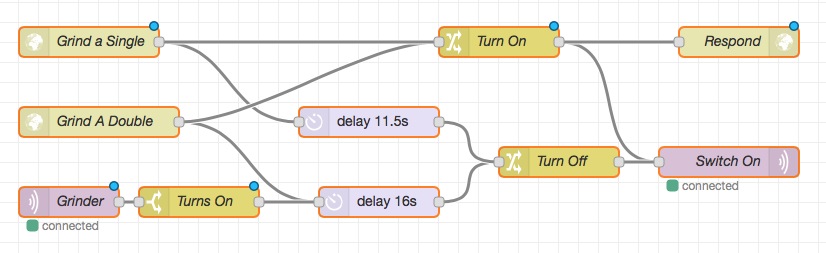
Each HTTP endpoint sends two messages: one to turn on the grinder, and the other to delay for the required period of time, and then turn off the grinder. Each of these messages passes through a node that sets the required payload, and then goes to the same MQTT output node. The “Turn On” message also goes to an HTTP Response output node. It took me a while to realise that this is required, otherwise the Siri Shortcut will wait until the request times out.

The bottom MQTT input node listens for the grinder to be switched on (which could happen by a manual press of the button, or otherwise turning it on in HomeKit), and then, after 16 seconds, turns it off. I’ve reused the same message flow, so that this timer will always be the same as the “Grind a Double” message. In practice, we could just have the “Grind a Double” turn it on, and then this sub-flow turn it off, but explicit is better than implicit.

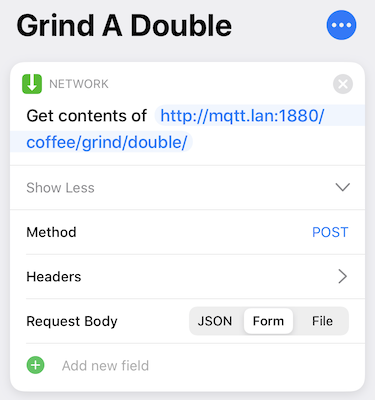
So that just leaves the Siri Shortcut. That too is fairly straightforward: it just fires off an HTTP POST request to the correct endpoint:

Shortcut

And the other one is just as simple.


Now, I’m off to make another coffee.

Hey Siri, Grind A Double!

Hacking the DETA rewireable plug

There are a bunch of inexpensive IoT devices coming onto the market. One of these ranges are the GridConnect devices available from Bunnings. I’ve been eyeing these off, because they include some fairly reasonable looking switches and plugs, and, most importantly, are legal to have installed in your home in Australia.

I’m not okay with sticking a bunch of devices into my home network that communicate with the outside world. I like to use Apple’s HomeKit, which means the communication is funnelled through their systems, and everything I have configured as a HomeKit accessory either has no cloud component, and is where possible isolated onto a seperate wireless network.

In fact, most of my devices are home built, and have limited accesibility: they are permitted to connect to an MQTT server and nothing else.

Most of the commercially available items in Australia fail this test: they all have their own little cloud service. I dislike this for a couple of reasons: the first is security and privacy. I don’t trust that these providers will protect my data.

The second is a little more subtle: if an IoT provider goes out of business (or decides to end-of-life some products), then you are no longer able to access them in the way you might have liked.

So, I’ve been creating my own devices, or re-purposing commercial devices where possible. I grabbed a couple of the Mirabella globes, and was able to flash them with an ESPHome firmware, that I believe hardens the device somewhat. Having controllable light globes is neat, but realistically, they are of limited use. Having to use an App to turn on and off your lights is unacceptable, but also so is having an always listening microphone. And, again, what happens when you want to turn your lights on and your internet is down?

So, I’m more interested in smart switches.

I was not able to find much information about the Deta line of products that support GridConnect, so I went and bought the cheapest one, that I thought I was going to be realistically able to reverse engineer.

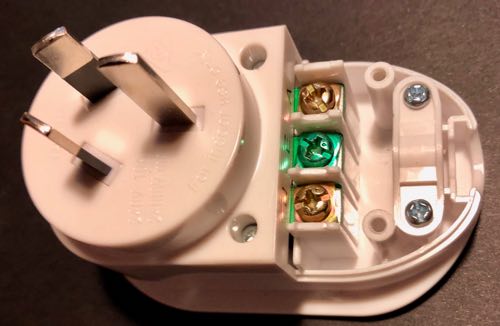
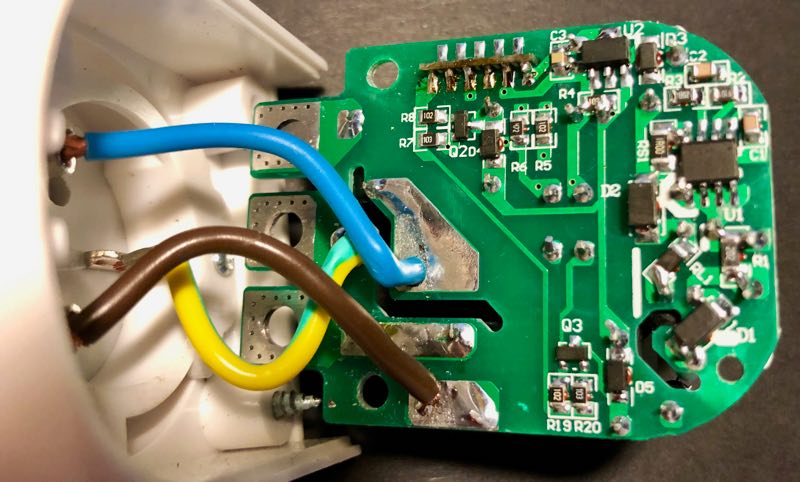
Opening up the “user accessible” region, we see the three screws for attaching the cable, and some lovely 2.0mm triangular screws.

IMG 2119

After spending more money on a set of screwdriver bits that had this size and shape, we are able to see the top of the PCB.

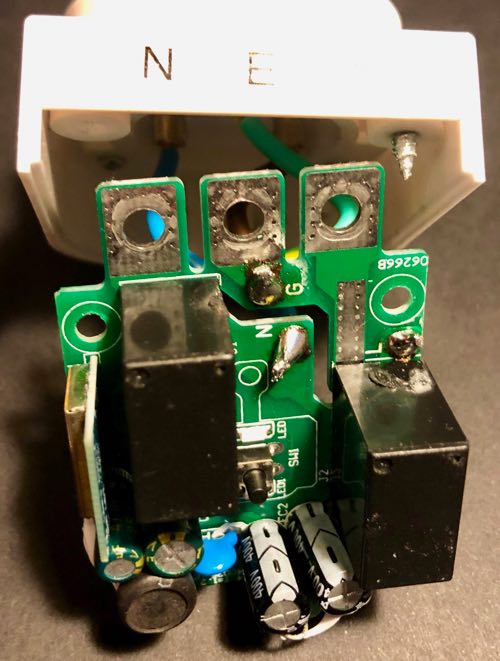
IMG 2120

Note that there are two relays: this is safer than things like the Sonoff Basic, that only switch the active wire, rather than both.

The underneath shows clearly the separation between the different AC lines.

IMG 2121

Finally, we can see the brains behind this switch:

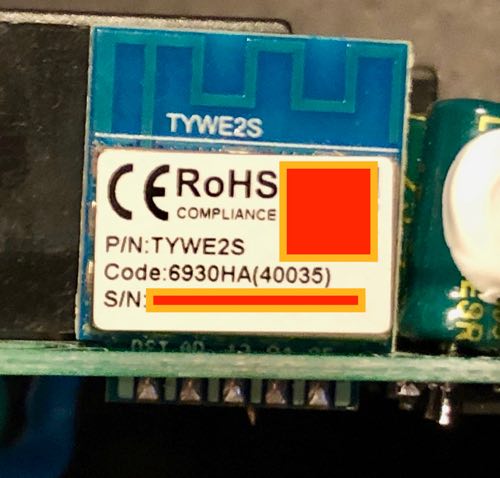
IMG 2122

Note the code on the microcontroller: TYWE2S. Plugging that into a search engine yielded some interesting results.

It turns out that not only are these using an ESP8285 (which is just an ESP8266 with onboard flash, and in a smaller package), but they are running the Tuya firmware. So, it wasn’t even necessary to have opened up the casing.

Since I had a Raspberry Pi Zero W configured to run tuya-convert, I built up a simple firmware that would enable me to run OTA updates after flashing, and settled down to working out which GPIO pins are attached to which parts: the button, LED and relay.

(Oh, and this was interesting: both the active and neutral lines are toggled by relays, as opposed to something like the Sonoff, that only toggles the active line).

At some point, possibly because I was tired, I flashed a firmware that accessed GPIO pins 6 and 7. This locks the device up, and prevents booting. So, I then soldered some wires onto the device (after opening it back up again: so it turned out I did need that fancy screwdriver bit) to get access to the UART.

Interestingly, the ESPHome firmware detects that it’s been unable to boot, and boots into a safe mode. So, again, in hindsight, I still didn’t need to open it up.

Through trial and error, I was able to determine which GPIO was the button. That’s the easiest (and was helpful for me to be able to determine the LED and relay).

Surprisingly, it was GPIO1. Those familiar with the ESP8266 may know this is normally the TX pin for the UART. Which explains why, when I had the serial port connected, I was seeing a bunch of weird things when I pushed the button.

Once I had that, it was a matter of trying each GPIO in turn to see which was the relay and which was the LED. I did them in pairs, and happened to choose GPIO13 and GPIO14 in the same test, so for a while I thought maybe the relay and the LED were hardwired together.

Anyway, I now have a working firmware for this device:

substitutions:
  device_name: deta_plug

wifi:
  # Hah!

esphome:
  name: $device_name
  platform: ESP8266
  board: esp01_1m

binary_sensor:
  - platform: status
    name: "Status"

  - platform: gpio
    pin:
      number: GPIO1
      inverted: true
      mode: INPUT_PULLUP
    name: GPIO1
    on_press:
      - switch.toggle: relay

switch:
  - platform: gpio
    id: led
    pin:
      number: GPIO13
      inverted: true
  - platform: gpio
    id: relay
    pin: GPIO14
    on_turn_on:
      - switch.turn_on: led
      - mqtt.publish:
          topic: HomeKit/${device_name}/Switch/On
          retain: ON
          payload: 1
    on_turn_off:
      - switch.turn_off: led
      - mqtt.publish:
         topic: HomeKit/${device_name}/Switch/On
         retain: ON
         payload: 0


sensor:
  - platform: wifi_signal
    name: "WiFi signal sensor"
    update_interval: 60s

ota:

logger:

mqtt:
  broker: "mqtt.lan"
  discovery: false
  topic_prefix: esphome/${device_name}
  on_message:
    - topic: HomeKit/${device_name}/Switch/On
      payload: "1"
      then:
        - switch.turn_on:
            id: relay
    - topic: HomeKit/${device_name}/Switch/On
      payload: "0"
      then:
        - switch.turn_off:
            id: relay

I’m using my MQTT ⟺ HomeKit bridge, since that works great, but you could easily change the MQTT topics, or do whatever else you want to do.

Update: turns out, I just needed to search for the code: this page has everything I would have needed.

Sonoff Touch LAN Mode and MQTT

I’ve had a couple of the Sonoff Basic devices for quite some time. It’s fairly easy to solder some header pins onto these which makes flashing the firmware somewhat of a non event, but it’s still a bit of a pain.

The other thing I bought (again, some time ago, but a bit after the Sonoff Basic) is a Sonoff Touch. This is an in-wall light switch replacement, which means you can replace your existing light switches with something that you can control over WiFi. They actually look pretty nice, too.

I wasn’t so keen on mucking around with soldering them, partly because you need to use a 90° header. However, the other day I learned that there is a way to control them (and the Basic) without having to connect to the iTead servers.

When the devices are unable to connect to a remote server (yes, they basically keep a connection to this remote server open 100% of the time, which was part of the rationalé behind flashing the firmware), the go into LAN mode.

When they are in LAN mode, they will respond to WebSocket connections over port 8081, making it easy to control them directly.

In my router (running LEDE), I can set a specific range of IP addresses to be unable to connect out to the internet, and then all I need to do is make sure the devices get one of these IP addresses.

The configuration process is something like:

  • Touch the switch toggle for 7 seconds. This puts it into pairing mode, where it acts as an Access Point (AP).
  • Connect to the new WiFi network ITEAD_100000xxxxxx.
  • Get the MAC address of the device at 10.10.7.1
  • Tell the router to reserve an IP address in the required range for this MAC address.
  • POST data to the device (10.10.7.1) with a JSON object that contains the WiFi credentials. This will trigger the device to disconnect the AP, and connect to the WiFi network. It’s also possible at this time to tell it to connect to a different server (which I may do instead at some point, but this method was quicker for now).
  • Connected to your WiFi, send JSON messages over a WebSocket connection to the device (at it’s fixed IP address).

I’m hoping at some point to automate this, but it’s meaningless to do so until I get a bunch more devices.


So, on to the software.

Ultimately, the plan is to control these devices using HomeKit. I started writing a direct bridge (similar to my MQTT HomeKit bridge), but then decided it would be simpler to just bridge to MQTT - I could then use the correct topic names and values to allow it to interact with that MQTT HomeKit bridge.

There’s really only two things to do:

  • Connect to the Sonoff device, and wait for events from there as to the switch state. Push these changes to our MQTT topic.
  • Connect to the MQTT broker, and subscribe to our topic. When we get events, push these to the Sonoff device.

I attempted to play around with asyncio to get this to work, but I can’t remember enough about how to use it, so I went for an easier (for me) solution.

At this stage, it’s just a single Sonoff being controlled.

import json
import time
import enum

from websocket import create_connection
from paho.mqtt import client as mqtt

API_KEY = 'bba2e54d-7202-4a75-bd26-307597a1dd7d'
TOPIC = 'HomeKit/sonoff-{}/Lightbulb/On'


class State(enum.Enum):
    ON = 'on'
    OFF = 'off'

    @classmethod
    def parse(cls, data):
        if data in [cls.ON.value, True, 'true', 1, '1']:
            return cls.ON
        elif data in [cls.OFF.value, False, 'false', 0, '0']:
            return cls.OFF
        value = json.loads(data)['params']['switch']
        if value == cls.ON.value:
            return cls.ON
        return cls.OFF

    def __invert__(self):
        if self == State.ON:
            return State.OFF
        return State.ON

    def __bool__(self):
        return self == State.ON


class Sonoff:
    def __init__(self, host):
        self._state = None
        timestamp = str(time.time()).replace('.', '')
        self.ws = create_connection('ws://{}:8081/'.format(host))
        self.ws.send(json.dumps({
            'action': 'userOnline',
            'ts': timestamp,
            'version': 6,
            'apikey': API_KEY,
            'sequence': timestamp,
            'userAgent': 'HomeKit'
        }))
        self.deviceid = json.loads(self.ws.recv())['deviceid']
        print('Connectod to {}'.format(self.deviceid))

        self.client = mqtt.Client()
        self.client.on_connect = self.mqtt_init
        self.client.on_message = self.handle_mqtt_message
        self.client.connect('mqtt.lan', 1883, 60)

        self.state = State.parse(self.ws.recv())
        print('Current state is {}'.format(self._state.name))

    @property
    def topic(self):
        return TOPIC.format(self.deviceid)

    @property
    def state(self):
        return self._state

    @state.setter
    def state(self, value: State):
        if value == self.state:
            return
        timestamp = (str(time.time())).replace('.', '')
        self.ws.send(json.dumps({
            "action": "update",
            "deviceid": "nonce",
            "apikey": "nonce",
            "selfApikey": "nonce",
            "params": {
                "switch": value.value
            },
            "sequence": timestamp,
            "userAgent": "app"
        }))
        self._state = value
        self.client.publish(self.topic, int(bool(self.state)), retain=1)

    def on(self):
        self.state = State.ON

    def off(self):
        self.state = State.OFF

    def toggle(self):
        self.state = ~self.state

    def wait_for_ws(self):
        result = self.ws.recv()
        if 'switch' in result:
            self.state = State.parse(result)

    def handle_mqtt_message(self, client, userdata, message):
        self.state = State.parse(message.payload.decode())

    def mqtt_init(self, client, userdata, flags, rc):
        client.subscribe(self.topic)
        print("Subscribed to {}".format(self.topic))

    def start(self):
        self.client.loop_start()
        try:
            while True:
                time.sleep(0.01)
                self.wait_for_ws()
        finally:
            self.client.loop_stop()


if __name__ == '__main__':
    sonoff = Sonoff('10.1.10.140')
    sonoff.start()

I’m still not totally happy with the State stuff: I think I’ll use a simpler mapping there. But this works, and integrates nicely with my MQTT HomeKit bridge.

HomeKit Pairing Issues (HAP-python)

There were quite a few changes to HAP-python that I hadn’t kept up with in my MQTT to HomeKit bridge, but after restarting my computer, I must have updated the installed version in that package, and all sorts of things stopped working.

I spent some time getting code to actually execute again, but had an issue where it was still not working. All of the code was running as expected, but HomeKit was just failing to recognise anything. So, I unpaired and attempted to re-pair.

It failed to pair.

Well, technically, it paired, but then unpaired immediately.

It turns out that if the JSON data that is sent to HomeKit in invalid (semantically, in this case: it was valid JSON data, just not quite valid HAP data), then it will unpair - if the device is already paired, it will just appear as unavailable.

I had some custom code that built up the Information Services slightly differently, but my method of ignoring the standard HAP-python code that added this seemed to no longer work, so my bridge, and all of my accessories had two Information Services.

Fixing this meant that I was able to pair correctly again.

MQTT HomeKit Bridge

Writing HomeKit devices is possible (and even simple) using tools like HAP-python. However, devices like the esp8622 are slow to do the handshake stuff, and having to keep them awake to read temperature or other data on demand means you can’t use the deep sleep features.

These IoT devices can, however, quite easily handle publishing to an MQTT topic.

I’ve read most of the HomeKit Accessory Protocol spec (at least, the non-commercial one, but you’ll still need credentials to view that link), and I think I have a pretty good handle on it. And it occurred to me that it should be possible to bridge, in both directions, an MQTT broker and HomeKit.

Basically, you can then have a single bridge device (that you only need to register in HomeKit once), and have this connect to your MQTT broker. It can then perform two actions:

  • Listen for MQTT messages that meet certain criteria, and pass these through to HomeKit
  • Listen for HomeKit messages, and convert these into MQTT messages.

There’s a bit more to it than that: it keeps track of what devices are known, and will automatically add new devices when it detects one (via a matching MQTT topic). It could also remove devices that have not been seen for some time (or when a specific message indicates that device is no longer available).

I’ve chosen to make this as simple as possible - at this stage of my prototype there is no authentication in the MQTT broker, but that will have to change before I hook up anything other than temperature sensors. My Garage Door opener is still a standalone HomeKit device!

So, down to the nuts and bolts.

A message that matches the following pattern will be processed:

HomeKit/<device_id>/<service_type>/<characteristic_name>

For instance, I can currently see some messages that look like:

HomeKit/esp8266_12345678/TemperatureSensor/CurrentTemperature 20
HomeKit/esp8266_12345678/HumiditySensor/CurrentRelativeHumidity 58
HomeKit/123456789ABCDEF/TemperatureSensor/CurrentTemperature 20.125
HomeKit/TEST/Switch/On 1

The thing you might notice is that two of those messages have the same device id - the bridge knows this, and will add a second service to the accessory.

To be honest, this solution seems too simple, but it has been working really well for me for some time now. I have configured the sensors to send retain (persistent) messages, but I think I’m going to turn that off, except in the case of things like the switch device.

The other thing I haven’t totally nutted out yet is the authentication/authorisation stuff for MQTT. I have had some thoughts at this point though:

  • A device will generate a password when it first boots (and stores this).
  • This password will be used with the device id to authenticate with the broker.
  • When the client attempts to connect, a check will be made to see if the user exists - if so, the password must match. If not, the user will be created.
  • Any user created in this manner will be able to read and write topics that match HomeKit/<user_id>/#
  • A special user (the HomeKit bridge user) must be able to read and write all HomeKit/# topics.

Now that I’ve gotten OTA working with these devices, I need some mechanism for triggering this via MQTT.